Create your first song, set its key and tempo, add sections, and understand how Song Cage keeps the work from getting lost.
What you'll learn
- How to create a new song from the Song menu
- How to pick a key, mode, tempo, and time signature
- How to add and name sections
- How auto-save and undo keep your work safe, even offline
- How to keep a copy of a song as a file
- How the same song shows up on every device you use
- How to replay the Quick Start and the feature tour whenever you want a refresher
Chapter 1 was philosophy. Chapter 2 was geography. This one is mechanics: walk through creating your first song from scratch, getting the key and tempo right, adding sections, and understanding how Song Cage keeps the work from getting lost. If you prefer learning by touching, open the app and do each step as you read.
3.1 Create a new song
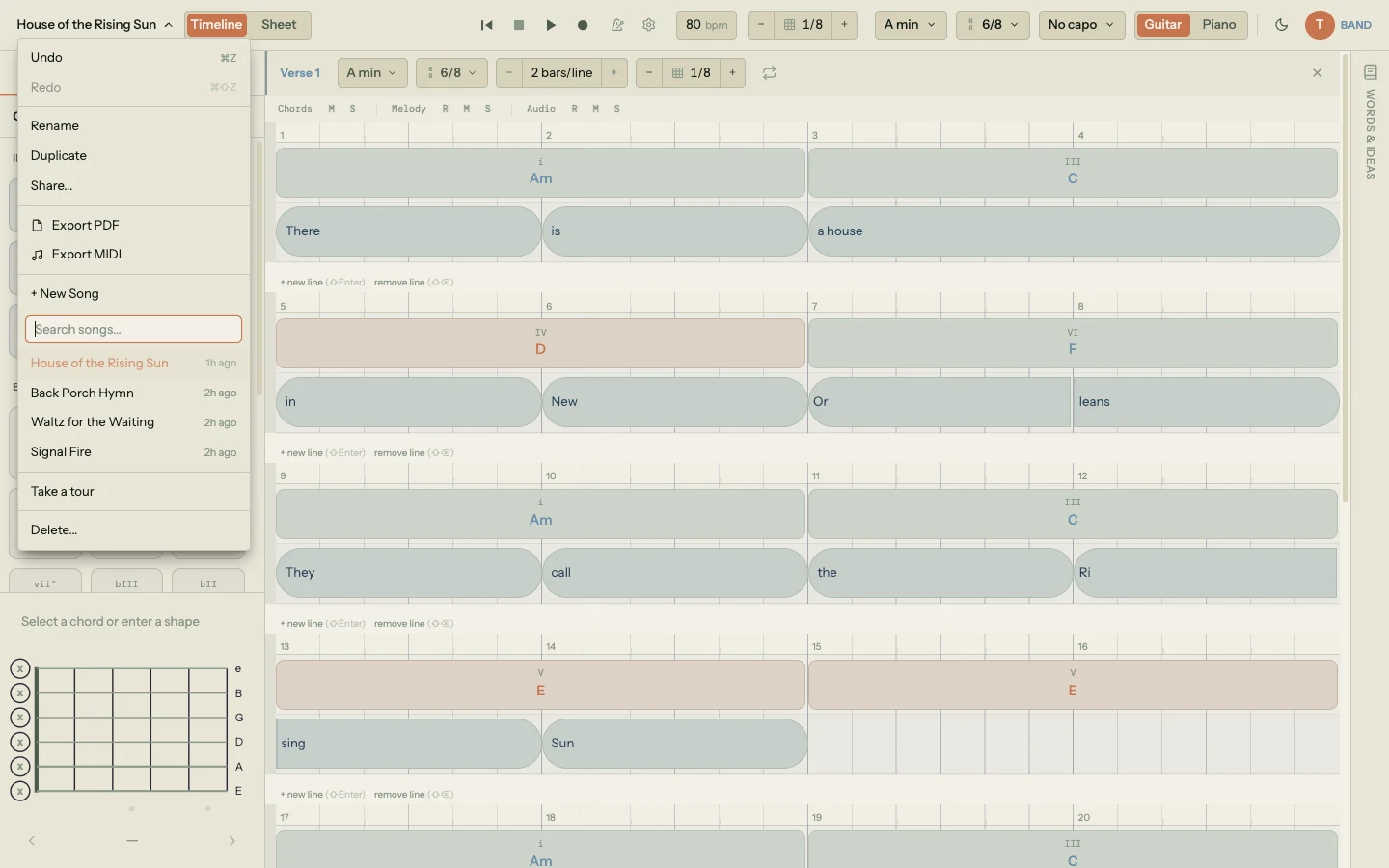
Click the song title in the top-left corner of the toolbar to open the Song menu. The filled New Song button sits at the top of the menu, above the search field and your songs. Click it. File > New Song in the menu bar does the same. In the desktop app the button shows its shortcut: ⌘N on Mac (Ctrl+N on Windows).
Song Cage creates an empty song, switches to it immediately, and drops you onto a timeline with two empty sections, Verse 1 and Chorus. In Timeline view the first chord slot of the verse is already picked for you, drawn as a dashed box, so a click on any chord in the palette places your first chord.
The song is already real: it's been written to your local database, queued for sync, and is visible in the song list. There's no separate "save" step. The friction between "I want to start" and "I'm writing" is one click.
On a Free account, the web app holds one song. A second one comes with the Song Cage licence, or during the 14-day trial you start in the desktop app or the plugin (see Account & Licence).
Until you name it, the song shows the date and time you made it (for example 9/17 3:42pm) in place of a title. Rename it now or later: double-click the title in the toolbar, click the pencil that appears beside the title when you hover it, or choose File > Rename… (File > Rename Song… in the desktop app). Working titles like "Signal Fire" help future-you find the song in the list three weeks from now. A date stamp does not.
3.2 Set the key, mode, and tempo
A new song opens with no key (Wander mode), at 120 BPM in 4/4 time. No key is fine while you collect a few chords by ear: once you've placed a couple, a Sounds like strip in the chord palette offers keys to lock in (Chapter 11 covers Wander). But most songs you write will want a key and a tempo of their own, so set them early: every chord suggestion, melody-fit score, and modulation route depends on them.
Picking a key
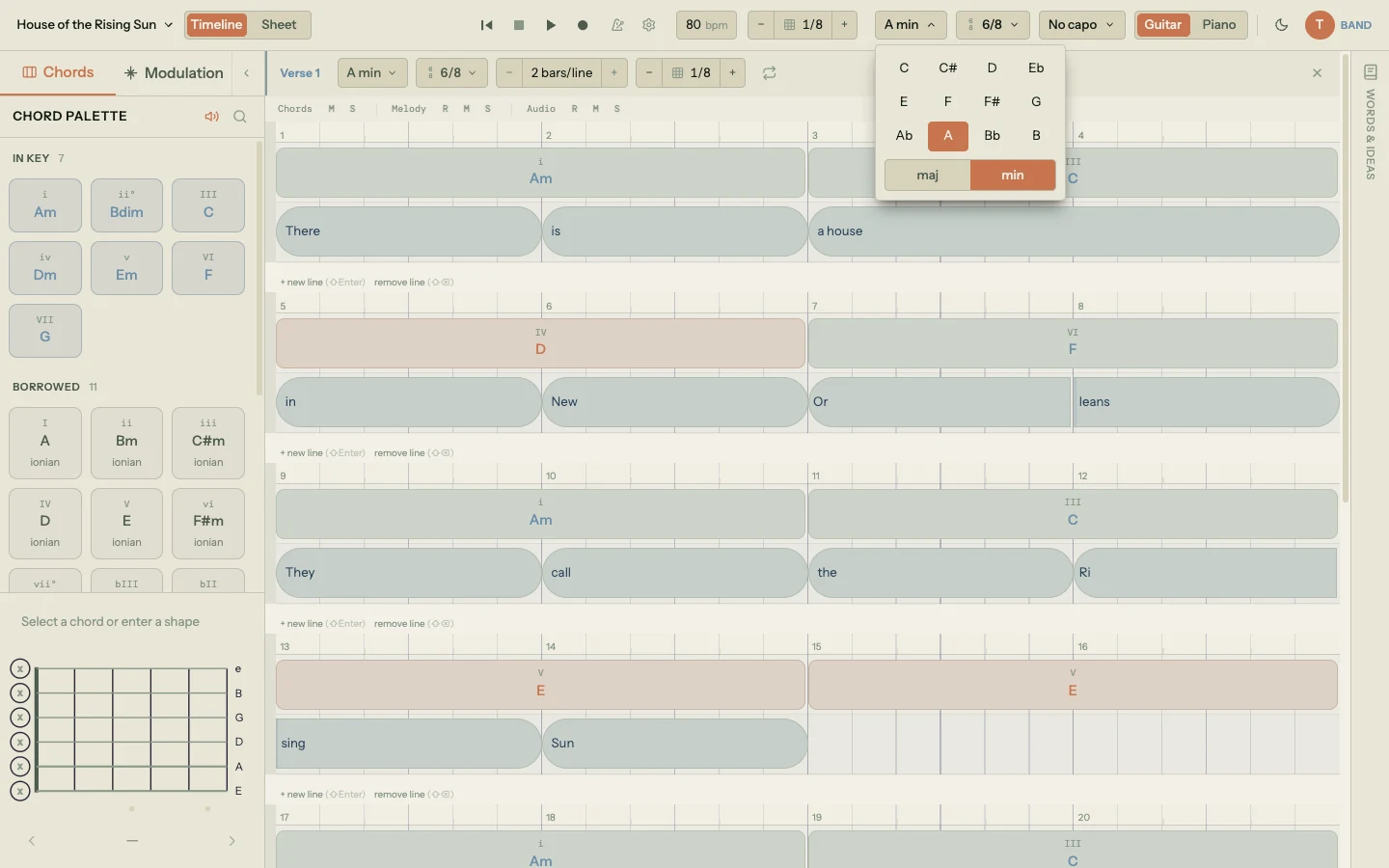
Click the key chip in the toolbar (on a new song it reads No Key, inside a dashed border). A key picker opens. Pick a root note and a mode. Everything updates live: the chord palette re-ranks by the new key, borrowed chord sources shift to the new parallel modes, and any chords already on the timeline get re-labeled with their new Roman numerals relative to the new key.
When the change is one Song Cage can carry your chords through, the picker stops and asks rather than guessing. Choose Move song and every chord transposes with the key. Choose Relabel only and the chords stay exactly where they are: a Dm on the timeline stays D minor when you go from C major to F major, and only its Roman numeral changes, from ii to vi.
For the House of the Rising Sun demo song, the key is A minor. For your first original, pick whichever key feels right on your instrument: guitarists often start in G, E, A, or D major; pianists in C, G, or F major.
Setting the tempo
Double-click the tempo display (it reads 120) to edit it. Type a number, press Enter, done. You can also drag up or down on the display to change the tempo. Song Cage clamps tempo to a reasonable range (20 to 300) but otherwise lets you use any integer. In the plugin, your DAW project sets the tempo and the time signature (see The Plugin).
If you don't know your tempo yet, leave it at 120 and fix it later. The tempo affects playback timing but nothing about chord or lyric positioning. You can change it at any point without breaking anything that's already on the timeline.
Choosing a time signature
Click the time signature chip on the right of the toolbar (it reads 4/4 on a new song) and pick a time signature: 2/4, 3/4, 4/4, 5/4, 6/8, 7/8, 9/8, or 12/8. 4/4 is most common. 3/4 is waltz time. 6/8 is what House of the Rising Sun uses.
Changing the time signature rebuilds the grid beneath your chord and lyric blocks. If blocks are already placed, they keep their places in time, and each section grows or shrinks to whole lines of the new meter that still hold everything in it. When in doubt, pick the time signature first, before you start dropping chords.
3.3 Add and name sections
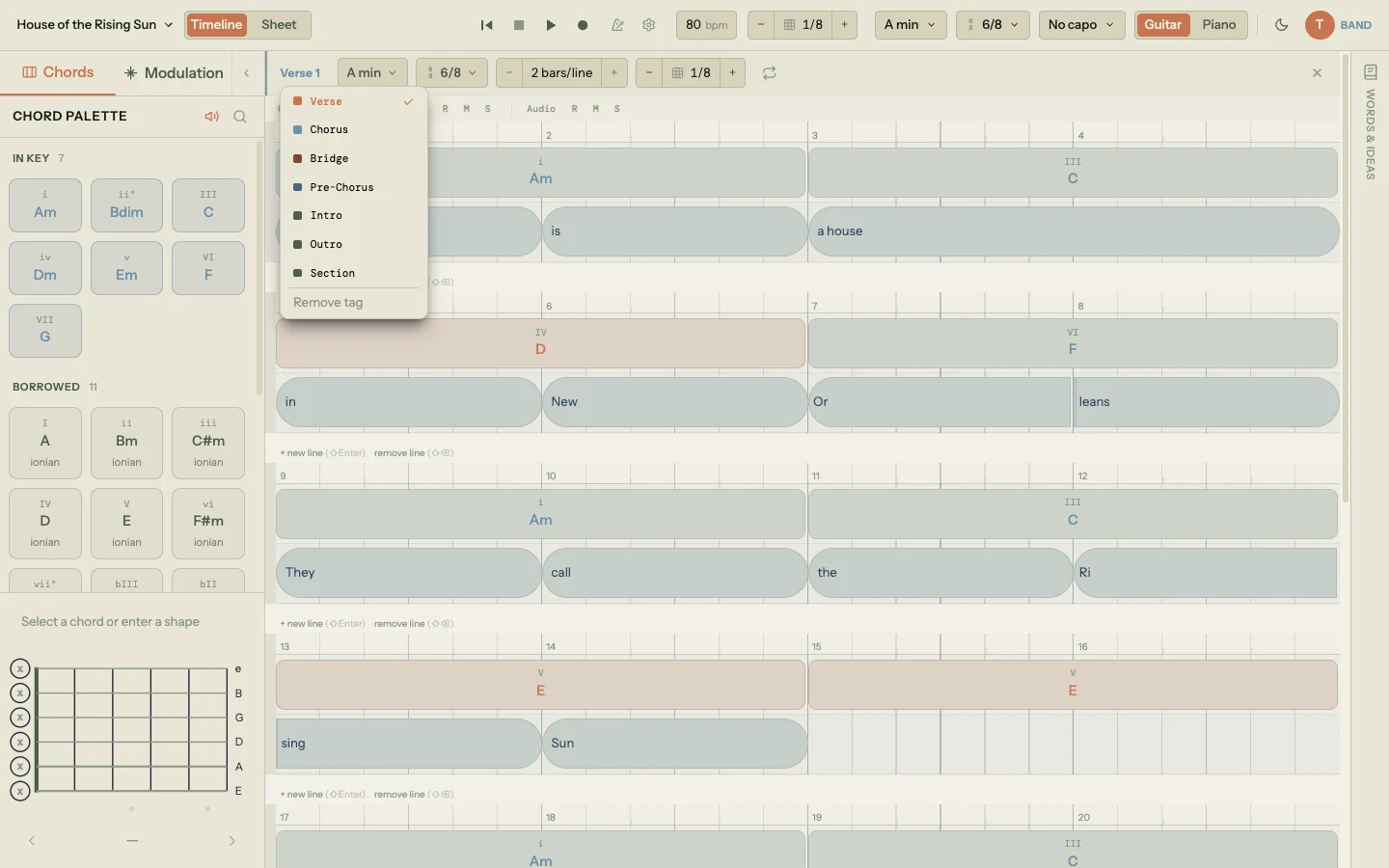
New songs come with two sections, Verse 1 and Chorus, each two lines long. Keep them, rename them, or retag them to fit the song you're writing.
Click a section's tag in its header to open the type dropdown: Verse, Chorus, Bridge, Pre-Chorus, Intro, Outro, or the plain Section. A new section you add shows + section tag there until you pick one. Song Cage names the section from the type you pick, and numbers it when the song already has one: tag a new section as a verse in a new song and it becomes Verse 2, because Verse 1 is taken. To type a name of your own, double-click the name in the header.
To add more sections, click + new section under the last line of any section, or press ⌘⇧Enter on Mac (Ctrl+Shift+Enter on Windows/Linux). The new section goes in below that one. Each section gets its own beat count, independent chord and lyric blocks, and optional key, time signature, and bars-per-line overrides in its settings (the sliders icon at the right of the section header). The default beat count comes from the section's time signature. To make a section longer or shorter, hover one of its lines and use the + (add a line below) or − (remove that line) at its left edge. From the keyboard, Shift+Enter adds a line and Shift+Backspace removes the section's last line.
How many bars each line shows is a song setting: Bars per line, in the time signature chip on the right of the toolbar. Every section follows it unless you give that section its own value in its settings. Chapter 5 covers lines and bars per line.
Section order is easy to change: grab the drag grip at the left of a section header and drag it up or down to rearrange. The underlying order updates, and any playback or export reflects the new order immediately.
3.4 The song list and switching between songs
Every song you create shows up in the Song menu's list, ordered by last-modified. Click any song to load it. Switching is safe: the current song auto-saves before the new one loads, so nothing is ever lost in transit.
Search the list using the search field under New Song and Play Live. Song Cage matches against titles and folder names, so if you titled a song "Signal Fire" three months ago, typing "sig" will find it instantly.
Folders
Once your list is longer than one screen, put songs in folders. A folder is for a project: the record you are making, the five songs for a weekend session, a batch of older material you want out of the way. Each song sits in one folder, or in none, and there are no folders inside folders.
Click + New folder under the song list, type a name, and press Enter. The folder appears with a single + New song row inside it, so you can make the folder first and write into it. Hovering any folder header shows a + that starts a new song already filed there.
To move a song you already have, hover its row and click the folder glyph, then pick the folder (or No folder). This song's folder at the bottom of the menu does the same for the song you are working on. Songs in no folder sit below the folders.
Folders fold and unfold with a click, and the menu remembers which ones you left open. The folder holding the song you are working on is always open when the menu opens, so you can see where you are.
To delete a song, right-click it in the song list and choose Delete song, or open it and choose File > Delete… (File > Delete Song… in the desktop app). Song Cage asks you to confirm before it deletes anything. Deleted songs are removed from the song list immediately and permanently from your account shortly after.
3.5 How saving and sync work
Song Cage was built so you never think about saving. You just write.
Auto-save
Every change you make to a song (placing a chord, typing a lyric, nudging a block, changing the tempo) triggers an auto-save on a short debounce. If you pause for more than a fraction of a second, the current song state is written to your local database. There's no "Save" button. There's no "Save as" flow. The work persists as you do it.
Undo
Because every change is kept as you make it, undo is how you take one back. Press ⌘Z on Mac (Ctrl+Z on Windows/Linux), or choose Edit > Undo. Redo is ⌘⇧Z or ⌘Y (Ctrl+Shift+Z or Ctrl+Y). Each edit is one step: a chord you place, a block you move, a note you enter. While you're typing a lyric, the first presses take back what you typed, and then undo carries on into the edits before it.
Song files
Auto-save keeps your songs inside Song Cage. To keep a copy on your own drive, or to move a song between computers that don't sync, choose File > Export Song File. It saves the song as a .songcage.json file with its sections, chords, lyrics, and melody notes (recorded takes stay in the app).
The desktop app opens one again with File > Open Song File… (⌘O on Mac, Ctrl+O on Windows), and the file becomes a new song. In the plugin, File > Open Song File… loads the file into that plugin instance in place of the song that's there, asking first if there's work to lose. The web app exports song files but doesn't open them. Exporting covers the details.
What happens offline
Song Cage uses local-first storage. When you work offline, changes still write to local storage and the app keeps working normally. When the network comes back, Song Cage quietly uploads everything that changed, merges any conflicts, and brings your local copy back in line with your account. Nothing you wrote offline is lost.
Cross-device sync
Open Song Cage on your laptop, write for an hour, close the tab. Open the phone app later that day. Your song is there in its Songs tab, with the most recent edits from your laptop already applied. No import, no export, no file sync to think about.
The same logic applies in reverse. Captures you make in the mobile app (voice memos, lyric scratchpads, chord sketches) land in your Ideas Inbox (on the web, in the desktop app, and in the plugin) with the Song Cage licence or during its 14-day trial. You can also bring in material Song Cage never captured: point it at a folder of voice memos, send recordings and notes across from your phone, or import written notes from the app you already keep them in. See The Ideas Inbox.
Song Cage runs off the web too. The desktop app is a native version of Song Cage for Mac and Windows that signs in to the same account. With the licence, or during the trial, your songs sync between it and the web app. And if you write inside a DAW, the plugin lets you open your cloud songs from an in-app library, right next to the track you are scoring.
3.6 Replaying the guided tour
A new account opens with a short Quick Start that asks what you have so far: a melody to hum, words to type, or nothing yet (start with a chord). Each answer walks you through your first few moves on a blank song, one action at a time. Just let me explore skips it. The plugin doesn't show it.
The full feature tour picks up where the Quick Start leaves off. It loads House of the Rising Sun as a demo song and walks through the rest of the workshop: where your phone captures arrive in Ideas, the Sheet and Timeline views, the word tools, the piano roll, Auto Chords, chords that fit your melody, the palette's theory sections, changing keys, and the hint bar along the bottom that explains whatever is under your pointer. Step through with Next (or the arrow keys), and Back goes over a step again.
To run either one again, open the Help menu in the menu bar and click Quick Start or Feature Tour. The tour loads the demo song, walks through each panel, and automatically dismisses the overlays when you reach the end. Your previous song is restored when the tour finishes.
The tour is skippable at any step. Nothing is gated behind it.
That's the starting line. The next chapter is where the mental model shifts: Song Cage doesn't expect you to start with chords. You can start anywhere, and the next chapter walks through why and how.