Turn your song into something you can print, share, or open in a DAW. PDF chord sheets carry your lyrics, chord names, and voicing diagrams. MIDI files carry your chord voicings and melody timing as playable tracks.
What you'll learn
- Where to find the export options and what formats are available
- What a PDF chord sheet contains and how the layout works
- How mini fretboard and keyboard diagrams appear on the printed page
- What a MIDI export includes: chord track, melody track, tempo, and time signature
- How capo and voicings carry through to each format
- How files are named, and where they land in the browser, the desktop app, and the plugin
- Where a song file can be opened again
The previous chapters covered building a song and hearing it played back. This chapter is about getting it out. Three export formats live in the File menu in the menu bar: PDF Chord Sheet, MIDI File, and the Song File, which is the one Song Cage can open again.
14.1 The export menu
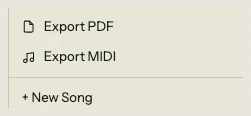
Open the File menu and you'll see the export entries below Share…. The desktop app's File menu has the same entries:
- Export Song File: saves the whole song as a
.songcage.jsonfile that Song Cage can open again. Sections, chords with their voicings, lyrics, syllable splits and melody notes all travel; recorded takes do not. - Export PDF: generates a printable A4 document with chord names above lyrics, voicing diagrams, and song metadata.
- Export MIDI: generates a standard MIDI file, as simplified chords or as the guitar fingering.
The song file is free for everyone with a song open. PDF and MIDI export come with the Song Cage licence, and with the 14-day trial while it runs, in the web app, the desktop app, and the plugin. On a Free account those entries carry a small Licence tag and open the licence offer instead of exporting. Chapter 17 covers what is free and what the licence adds.
In the desktop app and the plugin, File > Open Song File… brings a song file back in (see 14.8).
The export runs entirely on your machine. Nothing is uploaded to a server. In a browser the file generates locally and downloads immediately; in the desktop app and the plugin a save dialog opens so you can choose where it goes (see 14.9).
14.2 PDF chord sheet
The PDF is an A4 portrait page with a clean, print-friendly layout. Here's what appears on the page, top to bottom:
Header
The top of the page shows:
- Song title in large bold text on the left.
- Metadata strip on the right: key, mode, tempo (BPM), time signature, and capo position (if set and in guitar mode).
A thin divider line separates the header from the content.
Chord diagram strip
At the start of each section, a row of mini voicing diagrams shows every chord used in that section. In Guitar mode, these are tiny fretboard diagrams with dots, open-string circles, and mute markers. In Piano mode, they're mini keyboards with highlighted keys. Each diagram has the chord name printed below it.
The diagram strip gives the reader a visual reference for fingerings before they encounter the chords in context. If a section uses more chords than fit in one row, the strip wraps to the next line.
Section content
Each section prints with a bold section name (Verse 1, Chorus, Bridge, etc.), followed by lines of chord names above lyrics. The chords sit at the horizontal position corresponding to where they fall in the bar, so readers can see at a glance which chord aligns with which word.
If a section is in a different key from the song, that key appears next to the section name.
Pagination
Long songs automatically flow across multiple pages. The layout keeps section headers together with their content so a header never appears alone at the bottom of a page.
14.3 Diagrams on the page
The mini diagrams in the chord strip are drawn in solid black specifically for print clarity. They're designed to reproduce well on any printer, including black-and-white.
Guitar diagrams
Each fretboard is about 12mm wide and 8mm tall. It shows:
- Six strings (vertical lines) with a thick nut line at the top for open-position voicings.
- Dots at fretted positions.
- Open-string markers (circles) and mute markers (X) above the nut.
- A fret position label (e.g., "3fr") when the voicing sits above the open position.
Piano diagrams
Each keyboard is about 14mm wide and 5mm tall. Active keys are solid black; inactive keys are light gray (white keys) or dark gray (black keys). A small white dot distinguishes active black keys from inactive ones.
Both diagram types auto-range to fit the voicing. Guitar diagrams show four frets centered on the fingered positions. Piano diagrams show at least two octaves, expanded if the voicing spans wider.
14.4 MIDI export
The MIDI file contains up to three tracks:
Meta track
The first track carries song-level metadata: the song title, tempo, and time signature. Any DAW or notation program that opens the file picks these up automatically.
Chord track
The chord track plays every chord block on the timeline using the voicings you've set. The two MIDI entries in the menu write it differently:
- Export MIDI (Simplified Chords) turns each voicing into a readable part. The lowest note stays exactly where you voiced it, so inversions and slash chords survive, and every other chord tone appears once, within the octave above it. The instrument program is Acoustic Guitar (Steel) when Guitar mode is active, or Acoustic Grand Piano when Piano mode is active.
- Export MIDI (Guitar Fingering) writes the exact guitar shape: if you selected a Barre V shape for Am, those specific fretted notes are what the MIDI file contains. It uses your guitar voicings even in Piano mode, names the track Guitar, and always uses the Acoustic Guitar (Steel) program.
Each chord ends a tiny fraction of a beat before the next one starts, so a repeated note always stops before it plays again, without an audible gap.
Melody track
If your song has melody notes (pitch data attached to lyric blocks), a melody track is included. The instrument program is Flute.
Each melody note is timed to its syllable. If a lyric block is split into three syllables, the melody track plays three notes with start times and durations matching each one. Like the chords, each note ends a tiny fraction of a beat early, so repeated pitches stay separate.
14.5 Voicings in export
Whatever voicings are stored on your chord blocks at the time of export are what appear in the output. If you browsed the voicing carousel and picked specific shapes, those shapes export. If you ran Smooth Voicings (Chapter 9) to optimize voice leading across a progression, the optimized voicings export.
If a chord block has no voicing set for the current instrument, the MIDI export falls back to the default close voicing a newly placed chord gets, with the bass note of a slash chord underneath, and the PDF's diagram strip shows that chord's name without a diagram.
This applies to both formats. The PDF draws the stored voicing as a diagram. The MIDI file plays it as notes, thinned to a readable part in the Simplified Chords export (see 14.4).
14.6 Capo and export
When your song has a capo set and you're in Guitar mode, both exports adjust:
PDF with capo
The header shows the capo position (e.g., "Capo 2"). Chord names in the body and the diagram strip show the shape chord: the fingering you play, not the sounding pitch. So if your timeline has an Am chord and the capo is on fret 2, the PDF prints "Gm" with the Gm fretboard shape. This matches how guitarists read chord charts: the shapes on the page correspond to what your fingers do.
MIDI with capo
The MIDI file includes the capo offset in the note pitches. Each guitar voicing's fret values are converted to MIDI note numbers with the capo added, so the exported notes sound at the correct concert pitch. A chord that looks like a Gm shape at capo 2 produces Am-pitched MIDI notes.
Piano and capo
Piano mode ignores capo. No capo information appears on the PDF, and Export MIDI (Simplified Chords) notes are unaffected. Export MIDI (Guitar Fingering) always writes the guitar shapes, so it includes the capo in either mode.
14.7 File names
Exported files are named after your song:
- Song file:
[Song Title].songcage.json - PDF:
[Song Title] - Chord Sheet.pdf - MIDI (Simplified Chords):
[Song Title].mid - MIDI (Guitar Fingering):
[Song Title] (guitar).mid
Special characters are removed and spaces become hyphens, so "House of the Rising Sun" exports as House-of-the-Rising-Sun - Chord Sheet.pdf.
14.8 Opening a song file
In the desktop app, File > Open Song File… (Ctrl+O, or Cmd+O on a Mac) picks a .songcage.json file and opens it as a new song, alongside the ones you already have. Open the same file twice and you get two songs, and a file from someone else's account never collides with one of yours.
In the plugin, File > Open Song File… loads the file onto the track, in place of the song that's there. If that song has any chords or words, Song Cage asks first, because it is replaced unless you've saved it to your cloud library. To keep the opened song in your library as well, use Save as new cloud song (The Plugin, 20.8).
The web app exports the song file but does not open it.
A song file is the way to keep a copy of a song on your own drive, or to carry one to another computer or into a DAW session: export it, copy the file across, and open it on the other side.
14.9 Where the file goes
Where an export lands depends on where you're writing.
In a browser, the file downloads the way any file does: it goes to your browser's download location, and your browser tells you it arrived.
In the desktop app and the plugin, a normal save dialog opens instead, with the file name already filled in. Choose where you want it and it saves there. If you change your mind and close the dialog, nothing is written and nothing is reported as broken: closing it is a decision, not an error.
That covers the three export formats: what they contain, how voicings and capo flow through, and how the layout is structured. The next chapter covers the Ideas Inbox, where quick captures from your phone become songs on your desktop.