Share a song with your bandmates, a co-writer, or a producer. Assign roles, send a link or an email invite, and work on the same song from different devices. Changes sync automatically.
What you'll learn
- How to open the Share dialog and what it shows
- How share links and email invitations work
- The three roles (owner, editor, viewer) and what each can do
- How accepting an invite works, including the sign-up flow
- How changes sync between collaborators
- How to revoke access or leave a shared song
- How listen links let anyone hear a song and leave notes on a line, without an account
- Which sharing features are free, and which come with the licence
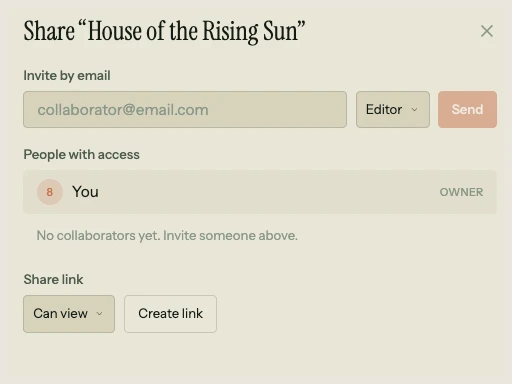
Your songs are private by default. Nothing is shared until you choose to share it. When you do, the Share dialog is where it all happens.
16.1 The Share dialog
Choose File > Share… in the menu bar, or click Invite in the toolbar (it reads Invite a co-writer on a wide window). The Share dialog has four blocks, top to bottom:
- Listen link: a link anyone can open to hear the song and leave you notes, with no account (16.10).
- Invite by email (licence or trial): a field for sending invitations directly to an email address, with a role selector (Editor / Viewer) and a Send button.
- People with access: the song owner and any collaborators, with their roles. Pending invitations also appear here until they're accepted.
- Share link: a section for generating and copying invite links, with a
Can view/Can editselector (editor links need the licence or the trial).
View-only links are free. Email invitations, editor links and managing collaborators come with the Song Cage licence, and with the 14-day trial while it runs. On Free, the dialog offers a view-only link, shows People with access only when the song already has collaborators, and ends with a Get the Song Cage licence link for the rest.
16.2 Share links
A share link is a URL you can copy and send to anyone. When the recipient clicks it, they sign in (or create an account) and gain access to the song.
Editor or viewer links
With the licence or the trial, a role dropdown next to the link lets you choose whether the link grants editor or viewer access. On Free it reads View-only link instead.
A viewer link lets the recipient open the song and see everything (chords, lyrics, melody, structure) without changing anything, which is what you want for a draft someone needs to review. An editor link lets them make changes. A single song can have up to five editors.
Creating and copying
Click Create link to generate a new share link. The link appears with a Copy button. Send it via text, email, or any messaging app. A share link isn't limited to one person: anyone who opens it and signs in gets the access it grants, so send it only to the people you mean to share with. The link inside an email invitation (16.3) is the one that works only once.
16.3 Email invitations
With the licence, or during the trial, you can invite collaborators by email directly from the Share dialog. Type an email address, choose a role (editor or viewer), and send. The recipient gets an email with a link to accept the invitation.
If the recipient already has a Song Cage account, they'll see the shared song in their song list after accepting. If they don't have an account yet, the invitation waits. When they sign up with the same email address, the pending invitation connects automatically and the song appears in their list.
16.4 The three roles
Every person with access to a song has one of three roles:
Owner
The person who created the song. Owners have full control: they can edit the song, share it, manage collaborators, change roles, revoke access, export, and delete. Every song has exactly one owner, and ownership cannot be transferred.
Editor
An editor can do everything an owner can do with the song's content: add and edit chords, lyrics, melody, sections, voicings, and structure. Editors cannot share the song with others, manage collaborators, or delete the song. Up to five editors can collaborate on a single song.
Viewer
A viewer can open the song and see its full content but cannot edit anything. A "View only" banner appears at the top of the screen, and all editing controls are disabled. Viewers can still play back the song to hear it.
16.5 Accepting an invite
When you click a share link or email invitation, the accept flow depends on whether you're signed in:
Already signed in: the invitation is accepted immediately. On desktop, the app opens the shared song within a couple of seconds. On mobile, a confirmation screen appears with an option to email yourself a desktop link (since the full editor is desktop-only).
Not signed in: the accept page shows sign-in and sign-up buttons. After you authenticate, the invitation is accepted automatically. The invite token is preserved through the entire auth flow, including OAuth redirects, so you don't need to click the link again.
16.6 How sync works
Song Cage syncs offline-first. When an editor makes a change (places a chord, edits a lyric, adds a section), the change saves locally and syncs to the cloud in the background. Other collaborators see the update when their device syncs, typically within a few seconds. That holds in the web app and in the desktop app; the plugin keeps songs inside your DAW project instead of syncing them (Chapter 20).
There are no live cursors or real-time presence indicators. You won't see another collaborator's mouse moving on the screen. The sync model is closer to a shared document that updates periodically than a Google Docs-style live editing experience. In practice, this works well for songwriting because collaborators are usually working on different parts of the song or at different times.
16.7 Managing collaborators
The People with access section of the Share dialog shows every person who has access to the song, including pending invitations that haven't been accepted yet.
Changing roles
The owner can change a collaborator's role using the dropdown next to their name. Upgrading a viewer to an editor gives them editing access. Downgrading an editor to a viewer removes their ability to edit (their changes up to that point remain in the song).
Removing access
Click the remove button next to a collaborator's name to revoke their access. They lose access on their next sync. Any edits they made before removal stay in the song.
16.8 Leaving a shared song
If you're a collaborator (not the owner), right-click the song in your song list and choose Leave song, or open it and choose File > Leave Song…, which takes the place of Delete. In the desktop app the File menu item is Delete Song… either way, and for a song shared with you it asks whether to leave. Either one removes you from the song's collaborator list. The song disappears from your song list, and any edits you made remain.
16.9 Shared songs in your song list
Shared songs appear alongside your own songs in the song list in the Song menu (click the song title). A small people icon (two head-and-shoulders outlines) beside the song's last-edited time distinguishes shared songs from ones you own. Shared songs are sorted by last updated, just like your own songs, so a recently edited shared song appears near the top. The plugin's cloud library lists only the songs you own.
16.10 Listen links and listener notes
A listen link is for people you want to hear the song, not edit it: a friend, a teacher, a writers' group. Anyone with the link can open it in a web browser, including on a phone, hear the song, and leave you a note on a specific line. They don't need a Song Cage account.
Making a listen link
In the Share dialog, under Listen link, click Create listen link. The link is copied straight away, and a Copy button sits beside it. A listen link works for 30 days, and the dialog shows the date it stops working. Turn off stops it at once; a link you turn off can't be turned back on, and creating another one gives a new address. A song has one listen link at a time, and everyone you send it to uses the same one.
What the listener sees and hears
The link opens the song as a chord sheet: the title, the key and tempo (and the capo and tuning, if set), each section by name, and the chords above the lyrics, line by line. If you've set a display name, the page says who shared it. A play button at the top plays the song's chords and melody, highlighting the line being played. The listener hears Song Cage playing the song, not a recording: recorded takes are never sent. Each section plays in the version that's showing in your song when they open the page.
Leaving a note
To leave a note, the listener taps a line, types, and presses Send. Without a line picked, the note is about the whole song, and Whole song instead switches a line note back. Notes can be up to 2,000 characters. The first time, a listener without an account types a name; the browser remembers it after that. Every note passes a quick automatic human check, and sending means accepting the Terms. A note can be held for a check, in which case the listener sees Held for a check and you decide whether it shows.
Each listener sees only their own notes and the replies to them, never what another listener wrote, so every reaction you get is independent.
Reading and answering notes
A Notes tab appears in the right-hand panel of any song with a listen link or notes, with a count of unread notes. Each note shows where it is in the song (the section name and the line's words, or The whole song); click that to jump there. From the Notes tab you can:
- Reply in the box under a note: the listener sees your reply when they come back to the link.
- Delete a note.
- Block a person: their notes stop reaching you, and they can't leave new ones on any of your songs.
- Show it or Remove a note that was held for a check.
Editors on the song can read and reply too. Songs with new notes show a filled speech bubble in the song list. When a note arrives you also get an email, at most one a day, telling you to look in the Notes tab; it doesn't include the song title or the note itself, and you can unsubscribe from these emails on their own.
Where listen links work
You make listen links and read notes in the web app and the desktop app. The phone and iPad apps and the plugin don't have them. In the web app they're free, including on the free account. In the desktop app they need the licence or the trial, because only songs that sync can be shared. The listener can be on anything with a web browser.
16.11 What is free
| Feature | Free | Song Cage licence |
|---|---|---|
| Listen links and listener notes (web app) | Yes | Yes |
| Listen links in the desktop app | Yes | |
| View-only share links | Yes | Yes |
| Editor share links | Yes | |
| Email invitations | Yes | |
| Max editors per song | 5 | |
| Manage collaborator roles | Yes |
The 14-day trial includes everything in the licence column while it runs. Collaborators don't need their own licence: the song owner's licence covers the invitation, and anyone they invite can view or edit for free.
That covers collaboration: sharing, roles, invitations, sync, access management, and listen links. The next chapter covers your account, what is free, and what the licence unlocks.