Pick a destination key on the map. Song Cage shows you the routes to get there, from a two-chord cadence to a five-chord approach with voice-leading extensions, and the same routes in reverse when you want to come home.
What you'll learn
- How the Key Map shows your current key surrounded by its six closest relatives
- How the map encodes harmonic distance through shared chords
- How cadential routes (ii-V-I, tritone substitution, and others) establish a new key
- How to place route chords on your timeline with one click
- How section key overrides let different parts of your song live in different keys
- How to build a route back to your home key
Chapter 9 covered the chord palette. Chapter 10 covered melody. This chapter covers the moment when the key itself needs to move: a verse that lifts into a brighter chorus, a bridge that drifts into a minor key, or a final chorus that steps up a half step for energy.
Modulation is one of the most powerful tools in songwriting, and also one of the hardest to execute without theory knowledge. The Modulation tab turns it into navigation: pick where you want to go, choose how you want to get there, and place the chords on your timeline.
11.1 The Key Map
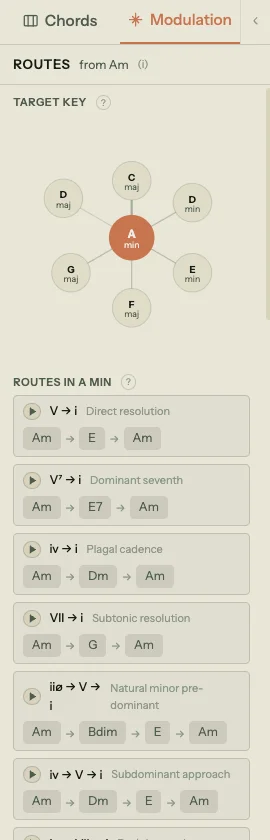
Select a chord on the timeline, then click the Modulation tab in the left sidebar (next to the Chords tab). The panel needs that chord: it is the one every route departs from, and the header reads Routes from [chord]. An empty beat you've marked in the chord lane works too: the routes then depart from the chord before it. With neither, you get a prompt to pick one.
At the top is the Key Map: your current key at the center, surrounded by the six most closely related keys. It shows six rather than all twenty-four deliberately, because six is readable and the rest are noise.
The map is not decorative. Song Cage scores every other key by how many triads it shares with yours, then draws the closest six. Keys that share more chords sit nearer the center and are joined by a heavier line; keys sharing fewer sit farther out on a thinner one. That gives you a sense of harmonic distance before you commit to anything. In A minor, for instance, the map offers C major, D minor, E minor, F major, G major, and D major.
Click any key on the map to select it as your target. The panel below updates with routes.
11.2 How the map picks its six
The keys on the map are ranked by shared triads, and the ranking uses the major and natural-minor triads of each key. Two keys a fifth apart share four of seven chords; two keys a tritone apart share almost none, which is why the map never offers them.
Relationships are named where a name exists: parallel, relative minor, relative major, dominant key, subdominant key. Everything else is labelled by distance: closely related (four or more shared chords), related (two or more), or distantly related.
Song Cage does not display a separate ranked list of pivot chords. The pivot logic lives inside the routes themselves: a route starts on the chord you selected and walks a cadence into the target key, so the shared ground between the two keys is expressed as chords you can hear and place rather than as an analysis you have to read.
11.3 Routes
Below the Key Map, the panel shows a list of routes: complete chord progressions that establish the new key. Routes are organized by complexity.
Direct routes
The simplest routes are two chords: a dominant resolving to the tonic of the target key. V → I in the target key is the most direct modulation possible. The panel also shows V7 → I (with a seventh for stronger pull) and alternatives like IV → I or bVII → I.
Three-chord cadences
More common in practice: ii → V → I gives the listener a pre-dominant, a dominant, and a resolution. The extended version, ii7 → V7 → Imaj7, adds sevenths for smoother voice leading. The panel also includes the tritone substitution variant: ii7 → bII7 → Imaj7, where the dominant is replaced by its tritone equivalent for a chromatic bass descent.
Extended routes
For longer, more gradual modulations: four- and five-chord routes walk the listener through a sequence that feels like a natural progression rather than a sudden shift. Routes like vi → ii → V → I or iii7 → vi7 → ii9 → V13 → Imaj7 take more time but arrive more smoothly.
The extensions on these chords (9ths, 13ths, #11s) are chosen for voice leading: ninths on pre-dominants carry into the next chord, thirteenths on dominants share a common tone with the tonic, and Lydian dominant (#11) on tritone substitutions aligns with the target's fifth.
Minor key routes
When the target key is minor, the routes adapt: V → i, iiø → V → i, iiø7 → V7b9 → im7, and extended versions that use the natural minor's VII chord and half-diminished ii.
11.4 Placing routes on the timeline
When you've marked an empty beat in the chord lane, each route in the panel has an Add here button. Click it to place the route's chords on the timeline, starting from that beat. You can also drag a route card straight onto the chord lane, which works with a selected chord too.
The chords insert sequentially, each as long as the chord the route departs from: if a route is ii9 → V13 → Imaj7, three chord blocks appear on the timeline at consecutive beat positions. You can then drag them to adjust timing, or change their voicings in the chord edit popover.
Placing a route doesn't automatically change the section's key. The chords land in your current key context with the correct pitch names for the target key. To make the chord palette and suggestions reflect the new key from that point forward, set a section key override on the section where the new key takes hold (see below). When the route leads to a different key, the panel offers this as soon as the chords land: Set section to [key]? with Set key, which gives the section you placed the route in that key, and Skip, which leaves it alone.
11.5 Coming home again
The return leg uses the same tool pointed the other way. Once you are working in the new key and sitting on a chord that no longer belongs to your home key, select your home key on the map: the panel's heading changes to Return to [home key] and the routes it lists are cadential patterns back, with extensions chosen for voice leading so the ninths carry between chords and the thirteenths bridge into the resolution.
The centre node on the map doubles as the shortcut. Once a target is selected, the home key at the centre is labelled Return to, so one click puts you back on the home-key routes.
This lets you plan a complete arc: place the forward route to leave, write the section in the new key, then place a return route to come back. Whether the song comes home at all is the thing that separates a modulation from a gear change, so it is worth deciding before you leave.
11.6 Section key overrides
Chapter 5 introduced section key overrides. Here's how they work with modulation in practice.
Your song has a global key set in the toolbar (e.g., A minor). Every section inherits that key by default. When you modulate to a new key for a specific section, open that section's section settings (the settings button on the right of its header) and pick the new key in the Key block. A key badge such as D maj then appears in the section header. Only sections with their own key show one, so you can see at a glance where the key changes, and clicking it opens the same settings.
Once the override is set:
- The chord palette re-ranks for the new key. In Key, Borrowed, and Secondary Dominant tabs all update.
- Roman numeral labels on existing chords recalculate relative to the new key.
- Melody-fit scoring uses the new key's scale when ranking chords.
- Modulation routes in that section depart from the overridden key, not the global key.
To clear an override and return to the global key, open the section settings again (or click the badge) and choose Inherit from song.
The palette and modulation panels follow your focus into an overridden section. Selecting a chord, a lyric block, or clicking the line-select tab in that section is enough: the panel header switches to show the section's key (the chord palette adds a small section tag beside it when it differs from the song default), and all suggestions reorient to that key. Click outside the section and the panels return to the song's global key.
Key overrides are per-section, so you can have a verse in C major, a chorus in D major, and a bridge in A minor, each with its own chord palette and suggestions. The song's global key stays as a home base that any section can return to.
Wander is also a valid mode for a section override (or the song-level mode). When a section is in Wander, Roman numeral labels and the diatonic / borrowed / secondary-dominant split stand down for that section, and the chord palette switches to a chromatic grid. See 11.8 below.
11.7 Key change vs. transposition
Two common confusions, clarified:
Changing the key (via the toolbar key chip or a section override) recontextualizes the chords. A Dm on the timeline stays Dm. But if you change the key from C major to F major, that Dm shifts from being labeled "ii" to "vi." The chord palette, suggestions, and modulation routes all update. The pitches on the timeline don't move.
Transposing physically moves every chord by an interval. Transpose up a whole step and Dm becomes Em, F becomes G, Am becomes Bm. Melody notes move with them, guitar and piano voicings are rebuilt for the new chords, and any section key overrides travel along so a song with a modulation in it keeps its internal relationships intact. This is what you want when the singer needs the whole song a step higher. Not sure which key suits the voice? The free vocal range test measures it and ranks the keys that fit, with the capo fret for each.
Both jobs live on the same control. Pick a new key from the toolbar key chip and, when the move is one it can actually make, the chip stops on a two-way choice instead of acting: Move song to [key], which carries every chord over, or Relabel only, which changes the label and leaves the chords where they are. The chip's own note is the shortest version of this chapter: move keeps every chord's role in the key, and recorded takes keep their pitch.
That choice is offered only when there is something to move and the move is well defined: the song has a key (not Wander), you are picking a different key in the same mode, and the song contains at least one chord or melody note. Everything else stays on the relabel path and switches silently. That includes major-to-minor and minor-to-major changes, where Roman numerals can't be preserved, and Wander lock-ins such as the Sounds like strip, where the detected key is describing chords that already exist rather than asking you to move them.
One thing transposition never touches is audio. Recorded takes are not pitch-shifted, so a transposed song and its old takes will disagree until you re-record.
In short: key change is a lens change (same chords, different harmonic context). Transposition is a pitch change (different chords, same harmonic context).
11.8 Wander mode
Wander is the "no key chosen yet" mode. Use it when you don't want the chord palette pulling you toward any particular tonic: when you'd rather collect a few chords by ear, see what they're suggesting, and lock in a key after the music points to one.
To enter Wander, click the key chip in the toolbar and pick Wander (this sets the song-level mode), or set a section's key override to Wander to scope it to one section. While it's active, the palette header reads Wander and the key chip reads No Key.
The chromatic chord grid
The In Key, Borrowed, and Secondary Dominants tabs are replaced by a single chromatic chord grid: 12 roots × major/minor in a two-column layout (24 chips total). A ♯/♭ toggle at the top of the panel switches the spelling between sharps and flats: the suggestion strip and the keyboard walk follow the toggle. A dice button rolls a random chord (roughly a third of rolls are plain triads, and the rest carry an extension such as a 7th, 9th, 6th, sus, or add9) so you can shake yourself out of habits. With a chord clicked on the timeline, each roll is tried on that chord, the same as clicking a chip (Chapter 9): press Enter or click away to keep it, or Escape to put the old chord back.
The suggestion strip
Once you've placed at least one chord, a suggestion strip appears above the chromatic grid with up to six chords ranked by what fits next. The label adapts to context: Bridges to next when there's a chord on both sides of the slot, Next chord when there's only a preceding chord, and Fits Melody when the slot has melody notes overlapping it.
Wander suggestions are scored differently from keyed suggestions. The scorer weighs voice-leading smoothness to the preceding chord, common tones with that chord, the same to the following chord when present, and melody-fit when a melody overlaps. There's a soft palette prior toward the inferred key (see below) but it never gates anything: Wander deliberately leaves the cadential pattern boosts (ii-V-I, plagal, 50s loop) out of the ranking, since those are key-locking moves that fight the Wander intent.
Key inference and locking in
As you place chords, Song Cage continuously infers the key your progression is implying. Once there are at least two chords, a Sounds like strip appears at the top of the panel with up to three candidate keys: the likeliest comes first as a filled chip, and the others are outlined. Hover a key to see why it was suggested, and click it to lock it in: the section (or the whole song, when the song itself is in Wander) switches out of Wander into that key, the palette tabs return, Roman numerals come back, and modulation routes become available again. A message with an undo button appears for a few seconds in case you change your mind. Click the × to dismiss the strip and keep going; it comes back if a different key takes the lead.
Keyboard navigation
Wander uses the same audition keyboard model as keyed mode (see Chapter 18 for the full reference). Left/Right steps through the panel ±1 (suggestion strip first, then the chromatic grid). Up/Down moves to the chip directly above or below: ±3 within the suggestion strip's three columns, ±2 within the chromatic grid's two columns, with column clamping when crossing between them. Shift+Left/Right cycles extensions on the current chord; Shift+Up/Down cycles voicings.
That covers modulation, key overrides, and Wander mode for deferred key decisions. The next group of chapters moves from harmony to sound: guitar and piano modes, playback, and export.