The window has four bands and no sidebar: a row of things you press, a caption of things that describe the take, the roll, and the chain with a column under it for each effect that is switched on. The split is deliberate. The header is only verbs, the caption under it is only nouns, and once you have noticed that, you can find any control in the window by asking whether it acts on the take or describes it.
What you'll learn
- The four bands of the window and what belongs in each
- Every control in the header, and why the fill moves between them
- The take bar, and which parts of it only appear when they can do something
- The five things the piano roll draws that a normal piano roll does not
- The hover panel that explains every control in the window
- The chain row, and what a slot's number means
- A strip's macro knob, and the drawer with every knob behind it
- Every keyboard shortcut, and when the plugin hands a key back to your DAW
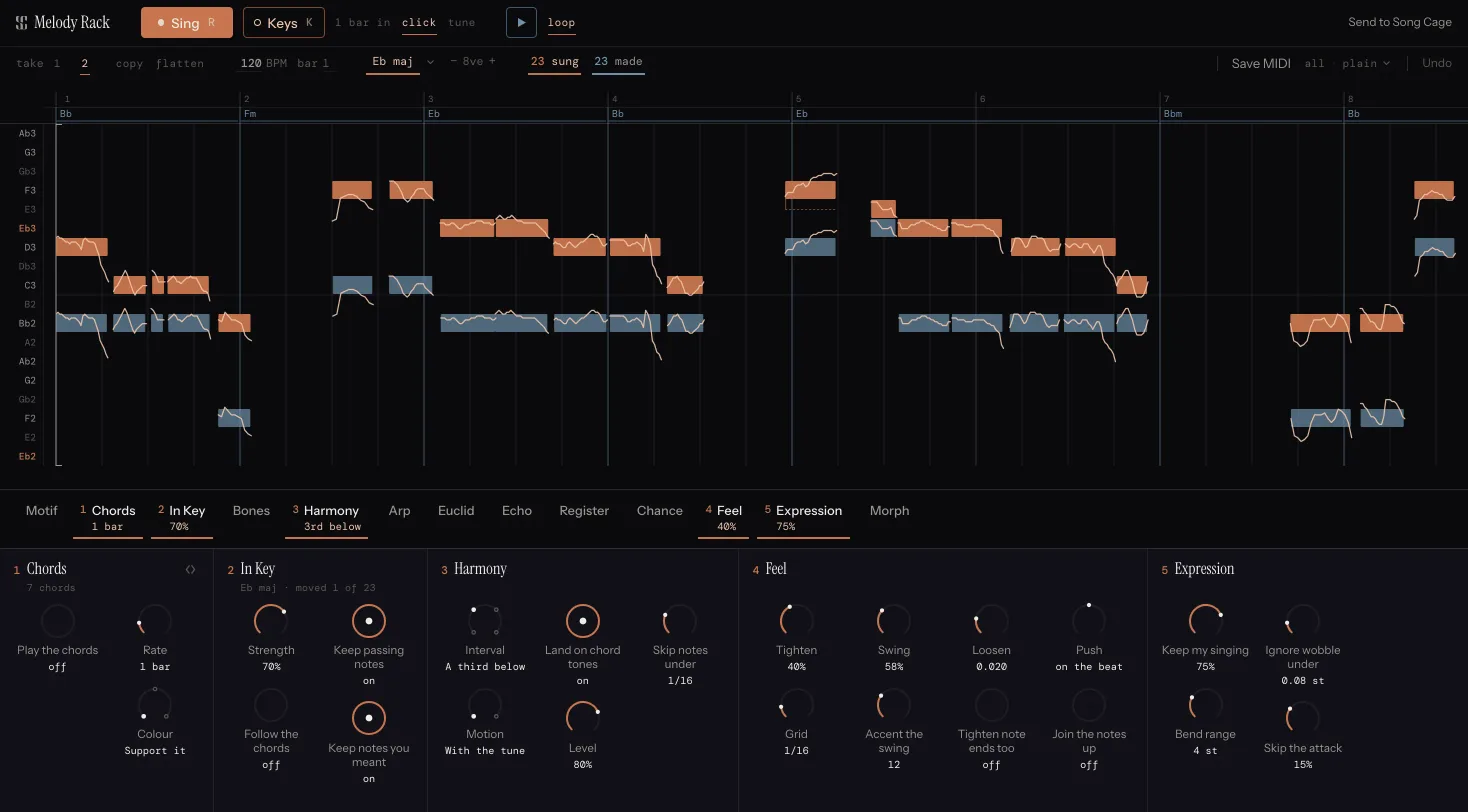
3.1 The four bands
From the top:
- The header. Things you press, grouped by what they act on: start a take, hear a take, send it to Song Cage. Plus the licence pill on the right.
- The take bar. Things that describe the take: which take, tempo and anchor, key, what is going out to the track. Plus the word that opens the fixes for a note, which appears only while a note is selected.
- The roll. The take drawn as notes, with the chords above it and a pitch axis that knows the key.
- The chain. Fourteen slots on one line that scrolls sideways, with a strip below for each one that is on.
The window has a 720px minimum, and everything fits at that width with nothing hidden and nothing shrunk. Under 860px the brand keeps its mark and drops the words, because your DAW is already printing "Melody Rack" an inch above them.
Every control explains itself on hover. Rest the pointer on anything in the window and a small panel comes up in the window's own ink, naming the control in full and saying what it does. On a dial, a selector or a switch in a strip the panel also shows the setting it is on, which matters because a strip's own labels are a word or two and a narrow host truncates them. A key printed in the text is drawn as the cap the buttons wear. It goes away the moment you press, scroll or turn anything, and nothing comes up while you are dragging.
3.2 The header
Sing
The one lit key in the window. Press it and you get counted in, then the microphone opens.
The fill moves to whatever will stop the current noise. At rest Sing wears it. While recording, Sing becomes a red Stop. While the local preview is playing, Stop wears it and Sing goes dark with only its rim in terracotta, still one click away but no longer the thing your hand goes to. This exists because reaching for the big coloured button to stop playback and recording over the take instead is a real thing that happened.
While counting in, the button shows the count and pressing it cancels.
Two small controls sit beside it and describe what Sing is about to do:
- The count-in, cycling through
1 bar in,2 bars inandno count. - click, a metronome through the count-in and the take.
Both go inert while your DAW is rolling, and say why: the take is then timed to the host's bars and the host has a metronome of its own, so a second click out of a second device is worse than none.
Keys and Import
Keys records from a MIDI keyboard or from a clip already on the track, with the same count-in and the same grid. It is not gated on the microphone: a DAW that will not give the plugin a mic still routes MIDI.
Import opens a panel with three ways to bring in a recording you already have: a file, your phone by QR code, or your Song Cage inbox. Dropping an audio file anywhere on the window does the same thing. See Chapter 4.
The reference note
Once there is a take on the roll, a small tuning control appears beside the count-in: press it and you hear a note to pitch against before you sing. It is made inside the plugin rather than by the instrument on the track, so it is always exactly in tune. Before the first take, the same thing is available as a keyboard drawn on the empty stage, which is the moment somebody is actually sitting in silence about to sing.
Play and loop
The plugin's own transport, drawn as a triangle and a square. It exists because hearing a dial move used to mean rewinding your DAW to bar 1 and rolling it, and a plugin cannot move the host's playhead in any desktop format. Same MIDI, same instrument on the track, the plugin's clock.
loop repeats the take while it plays here. Clicking the roll's ruler parks a cursor, and so does clicking a note (on its start) or an empty spot (on the grid). Playback starts from the cursor instead of the top.
Both are disabled while your DAW is playing, because then the host owns the transport.
Send to Song Cage
One press files the whole take in your Song Cage inbox as an idea: the melody through the rack, every part the rack made as its own take, the progression as the idea's chords, and the key, tempo and metre. See Chapter 10.
The licence pill
On the far right: trial · 9 days left during the trial, and pressing it opens checkout. It disappears once the plugin is licensed.
3.3 The take bar
Five groups, and the spacing says which is which: the gap between groups is three times the gap inside one.
- Which take. Numbers 1 to 5 for the takes the plugin is keeping, with the current one lit. Each carries its own delete, plus copy and flatten. See Chapter 5.
- When. Tempo (typed, when the plugin has no host to read one from) and the anchor, the bar of the song the take starts on.
- Where in pitch. The key row. To move notes an octave, select them and press Shift with the up or down arrow: see Chapter 7.
- What goes out. Two counts,
N sungandN made, in the two lane hues. Terracotta is what you sang, teal is what the rack made, and this is the only place in the window that says so in words. Each count is also the mute for its channel: lit while it goes to the track, dim while it does not. - What you can do with it. The drag handle, Undo, and, while a note is selected, the word that opens the fixes.
Select a note and its name appears beside the drag handle. Click it for the fixes. The drag handle never moves. In a narrow window, part of the bar moves to a second line.
3.4 The roll
The roll draws five things an ordinary piano roll does not, and each of them answers a question this window kept provoking.
The sung pitch curve
A line through the note blocks showing the actual pitch you sang, frame by frame. Everything downstream reads it; Expression writes it out as per-note bend.
The chords
A row above the notes showing the progression the rack worked out from your melody, with a padlock at the right end of each chord: click it to keep that chord while Answer, Colour and Rate change the rest. Every bar in that row is a place to write a chord yourself: click a chord, or the dim + on an empty bar, and a field opens. See Chapter 6.
The correction marks
Every note In Key moved is drawn against where you sang it: a dashed rule at the sung pitch, and a riser up to the block. Without this the roll showed a note at a pitch nobody sang, drawn identically to one they did, with the sung line running neatly through the middle of it.
Rest on a note and the roll says which of In Key's three questions decided it, with the number to check it against: In Key · up 1 semitone / sung 43 cents off · right-click › keep to undo, or In Key · kept / outside C maj · sung 4 cents off. You meant it.
A bright edge on a held note
A note you are holding by hand (see Chapter 7) carries a bright edge down its front. It is an edge rather than a fill, because two blocks at two pitches is a drawing of a chord.
A pitch axis that knows the key
Every row is named, the tonic strongest, the other six in plain ink and the five outside the key dim. So the gutter is not only a ruler: it is a picture of the frame In Key and Harmony are correcting against, and a note on a dim row is one those slots are about to have an opinion on.
The ruler
The strip at the top of the roll is the transport's. A click parks the play cursor on the nearest grid line, and a preview that is playing jumps there. A click on a note parks the cursor on the start of that note, even when the note was sung off the grid. After a Shift- or Cmd-click it goes to the earliest note picked. A click on an empty spot parks it on the grid line at or before the click. Neither click moves a preview that is playing, so the next play starts from where you clicked. Dragging on the ruler zooms: up zooms in, down zooms out, and the beat you grabbed follows the hand sideways.
The take's edges
Two brackets run down the note area at the start and the end of the take. Drag one to change the take's length: growing is only a setting and the notes stay where they are, shrinking puts the notes outside the edge out of the take without deleting them, drawn washed back until you drag the edge out again. Hold Option (Alt on Windows) and drag an empty spot to move the whole take by bars.
When the bar lines are drawn dashed, the grid is a ruler rather than a promise: the take was imported, or recorded through a fallback audio path that cannot honour a start time, so nothing counted it in. It is telling you the truth rather than sitting quietly on a wrong grid.
3.5 The chain
Fourteen slots on one line. When the window is too narrow for all of them, the row scrolls sideways: the end with more slots past it fades out, and the arrow in the fade pages along. Click a slot to switch it on or off; drag it along the row to change the order. With a slot focused, Alt with an arrow moves it one place.
Only the slots that are on carry a number, so the row states the order of the patch you actually have rather than numbering a menu. Rest the pointer on a slot to read what it does.
Some slots wait for something before they do anything. The slot is marked in the chain, and its strip says what it is waiting for:
- needs a key on Chords, In Key and Harmony. A progression is a set of degrees in a key, "a third above" is a number of scale steps, and In Key has nothing to pull a note toward. Click the words and the key panel opens on the take bar.
- needs Chords on Arp. An arpeggiator arpeggiates a held chord, and the chord track is the held chord.
- needs a second take on Morph, which walks between two of them.
Under the row, each slot that is on opens a strip, and a strip opens closed, on one large knob: its macro, which turns several of that effect's own knobs at once along a set path. At its starting point the effect is exactly as it ships, and double-clicking the macro puts it back there. The rail down the strip's right edge opens its drawer, with every control in it as dials, packed into columns in the effect's own order. On the rail, a filled dot marks each knob the macro turns and a ring each one it leaves alone, so a closed strip still shows how much is behind it; in the drawer, the same filled dot sits before the name of each knob the macro turns. Move one of those by hand and the macro reads custom until you turn it again. A switch that brings back something another slot silenced stands in a small row under the macro, by a short name: my line for Play the line I sang too and chords for Play the chords too. A few strips also put their own most-used choices there: Chords' play (Play the chords), Motif's after (Add after, don't replace), and an another button on Chords (the next Answer) and on Reply, Bones, Arp and Chance (the next Roll). Click another for the next one; Alt-click (Option-click on a Mac) goes back one. The Roll and Answer dials stay in the drawer, so you can turn straight back to one you liked. The plugin remembers which drawers you left open. A control the effect is not reading right now is hidden rather than shown doing nothing. Chapter 8 is every strip in full, with what each macro turns.
A strip starts with a power button. Click it to switch that effect off, the same as clicking its slot. Drag a strip by its title to move the effect along the chain. Two columns of dots appear on it while the pointer is on it, the same mark the chain's slots and the clip handle carry, and its place is held whether or not it is drawn so the band never reflows as the pointer runs along it. Dragging: a copy of the strip follows the pointer, a dashed outline shows where it will land, and the slots above move with it. Near either edge the strips scroll along by themselves, and Esc puts the strip back where it was. When the strips are wider than the window, hold the mouse wheel down and drag to scroll them, as in the roll.
A choice control, the ring with a small circle at each setting, turns like a dial: drag up or down to step through its choices, or click it to open the list. After a choice, Space plays again straight away.
A fresh plugin has only In Key on, and the rack starts with no key, so In Key is a no-op. The window gives your take back exactly as you sang it until you ask for something.
3.6 Keyboard shortcuts
| Key | What it does |
|---|---|
| Space | Stops whatever the plugin has running. Plays the take when nothing is. |
| R | Sing. Cancels the count-in, or stops a recording, if one is running. |
| K | Keys. Same ladder as R. |
| 1-5 | Put that take on the roll. |
| ↑ ↓ | Nudge the selected notes in pitch by a semitone. This also pins them. |
| Shift+↑ ↓ | Move the selected notes an octave. Select every note to move the whole part. |
| ← → | Move the selected notes to the next grid line. |
| Shift+← → | Nudge the selected notes in time by a small step. |
| Alt+← → | Select the next note along. |
| , . | Make the roll's grid finer or coarser. |
| + − | Zoom the roll in or out. |
| Z | Fit the selected notes on screen, or the whole take with nothing selected. |
| Cmd+0 | Fit the whole take on screen. |
| M (held) | Sing or play the pitch you want the selected note to be. It takes it when you let go. |
| H | Keep: hold the selected notes at the pitch you sang, so In Key leaves them alone. Does nothing while In Key is off or there is no key. |
| J | Join the selected notes into one. |
| C | Cut the selected note in two. |
| Q | Put the selected notes' starts on the grid. Shift+Q puts their ends on it too. |
| ⌫ | Delete the selected notes from the take. |
| Cmd+A | Select every note. |
| Cmd+drag | Copy the notes you drag instead of moving them. |
| Cmd+C | Copy the selected notes. |
| Cmd+X | Cut the selected notes. |
| Cmd+V | Paste the copied notes at the play cursor. The cursor moves on past them, so pasting again carries the line on. |
| Cmd+D | Put the selected notes down again straight after themselves. |
| Esc | Put the selection down. While you drag a strip, put the strip back. |
| Cmd+Z | Undo. Also on the take bar. |
On Windows, use Ctrl wherever the table says Cmd.
Two things are worth knowing about how these behave inside a DAW.
Space never starts a recording. Sing opens a microphone, and a key you can hit by accident should never do that. The asymmetry is the point: space makes things quieter, or plays back something that already exists. R and K do start one, because they are keys you go and find, and R is what every DAW already uses for record.
The plugin hands keys back to the host whenever it would not act on them: with any modifier held (the Cmd keys in the table excepted), while the caret is in a field, and, for Space specifically, while your DAW is rolling. A key claimed and then declined is a key swallowed for nothing, and a plugin window that eats the spacebar and does nothing with it is worse than one with no shortcut at all. An edit key is only claimed when it would do something, so with nothing selected, J, C, H and Q go straight through to your DAW. Cmd+A, Cmd+V, the take numbers and the zoom and grid keys still work.
Chapter 4 covers the four ways to put a melody on the roll.