Every lyric block can carry a melody note. Click to play a pitch, type it on the home row, sing it into the mic, or plug in a MIDI keyboard. The note sticks to the syllable wherever it moves.
What you'll learn
- How melody notes attach to lyric blocks and syllable segments
- How to enter notes with the inline piano, Musical Typing, MIDI, or your voice
- How Follow Chord mode remaps your keyboard to chord tones
- How to nudge, navigate, and delete notes after they're placed
- How pitch detection turns a sung melody into notes on the grid
- How the Mellotron voice options shape melody playback
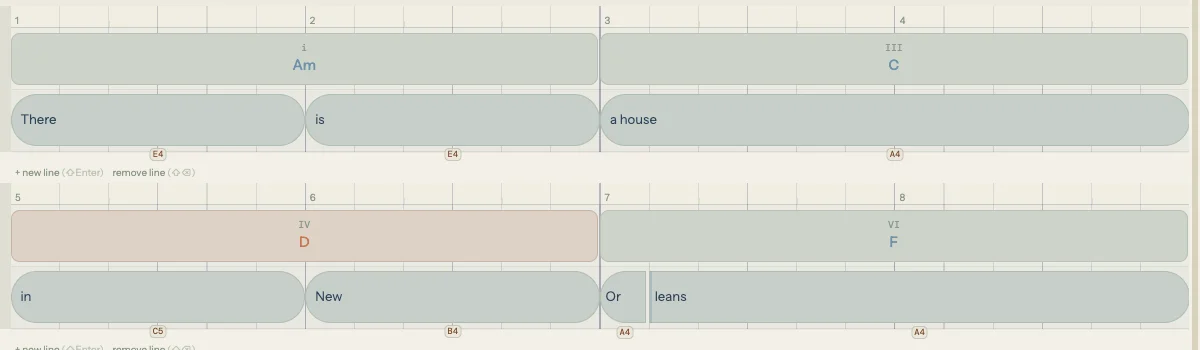
Chapter 9 covered building chord progressions. This chapter covers the other half of the harmony layer: the melody notes that live inside your lyric blocks. Every method of input described here produces the same result, a pitch label sitting on a syllable, so you can mix and match freely. Play the first phrase on the piano, type the second with Musical Typing, and sing the bridge.
10.1 How melody notes work
A melody note is a pitch attached to a syllable segment inside a lyric block. If a block has no syllable splits, it has one segment and one note slot. If a block has two splits, it has three segments and three note slots. Each slot holds either a pitch (like "E4" or "A4") or nothing.
On the timeline, melody notes appear as small pitch badges below each lyric block: light terracotta text showing the note name and octave. These badges move with the block when you drag it, and they follow syllable splits when you adjust dividers.
Melody notes are optional. A block can hold lyrics with no melody, a melody with no lyrics (a melody-only block), or both. When you single-click an empty spot in the lyric lane, Song Cage creates a melody-only block: a small note on the grid with no text. Double-click the same spot to create a lyric block instead.
10.2 The inline piano
The simplest way to add a melody note is to click a lyric block and play it on the inline piano.
Select a lyric block by clicking it. A small piano keyboard appears as a floating popover, centered on the block. The keyboard spans two octaves and shows both white and black keys. Click any key to set that pitch on the current syllable segment. The note previews through the Mellotron synth immediately.
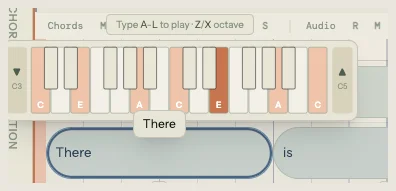
If the block has syllable splits, use Left/Right arrow keys to move the cursor between segments. Each segment highlights as you navigate, and clicking a piano key sets the pitch for whichever segment is active.
The piano auto-shifts its visible octave range when you click a note near the edges. To jump octaves manually, use the Z and X keys (down and up) or the octave buttons on either side of the keyboard.
Press Enter to confirm and close the piano. Press Escape to close and revert to the previous note. Or just click somewhere else on the timeline to deselect.
10.3 Musical Typing
For faster input, toggle Musical Typing by pressing K. A thin indicator bar appears showing "Musical Typing: On" with the current octave number.
Musical Typing maps your QWERTY keyboard to a chromatic scale, matching the layout used by GarageBand and other DAWs. The home row plays naturals, and the row above fills in the sharps:
| A | W | S | E | D | F | T | G | Y | H | U | J | K | L | |
|---|---|---|---|---|---|---|---|---|---|---|---|---|---|---|
| Note | C | C# | D | D# | E | F | F# | G | G# | A | A# | B | C | D |
Z shifts down one octave (minimum 1), X shifts up one octave (maximum 7). The default octave is 4, so pressing A plays C4.
Musical Typing works in two contexts:
- With the inline piano open, keys play through the piano and set the note on the active syllable segment.
- During recording, keys create notes on the timeline at the playhead position, quantized to the current snap division.
While Musical Typing is on, the mapped keys are consumed for note input. Other keyboard shortcuts still work through modifier keys (Cmd, Ctrl). Press K again to toggle it off and return all keys to their normal shortcut functions.
10.4 Follow Chord
Follow Chord remaps the home row to chord tones instead of a chromatic scale. Toggle it from the right-click context menu, the toolbar input settings, or the input section of the timeline.
When Follow Chord is active:
- Song Cage finds the chord at the current playhead position (or the selected block's beat).
- It builds a pool of 9 ascending chord tones starting from the chord root.
- Keys A through L map to those 9 tones in order. A is the root, S is the next chord tone up, and so on.
The inline piano switches from a full two-octave keyboard to a chord tone strip: a row of buttons showing only the available chord tones. The strip updates automatically as the playhead crosses chord boundaries.
Follow Chord is useful when you want every note to fit the harmony without thinking about which notes are in the chord. It's especially powerful during recording: play along with the accompaniment and every note you hit is guaranteed to be a chord tone.
Z and X still shift octaves in Follow Chord mode, and MIDI input also snaps to the nearest chord tone when the mode is active.
10.5 MIDI input
If you have a MIDI keyboard or controller, Song Cage detects it automatically via the Web MIDI API. A device picker appears in the toolbar when a controller is connected, showing the device name and manufacturer. Select your device and play.
MIDI input works everywhere the other input methods do:
- With the inline piano open, MIDI notes set the pitch on the active syllable segment.
- During recording, MIDI notes create blocks on the timeline at the playhead position.
- With Follow Chord active, MIDI notes snap to the nearest chord tone.
Hot-plug is supported: connect or disconnect a controller at any time and Song Cage detects the change.
10.6 Editing notes
Nudging pitch
With a lyric block selected, press Arrow Up or Arrow Down to nudge the melody note by one scale degree. The nudge respects the current key and mode, so in C major, nudging up from E4 lands on F4 (not E#4). If Follow Chord is active, the nudge moves to the next chord tone instead of the next scale degree.
Each nudge plays the new pitch through the synth so you hear the change immediately.
Navigating between notes
Arrow Left and Arrow Right move the cursor through syllable segments within the current block, then jump to the adjacent block. Each note plays as the cursor lands on it, so you can arrow through a phrase and hear the melody in sequence.
Deleting a note
Press Delete or Backspace with a syllable segment selected to clear its note. The segment keeps its lyric text; only the pitch is removed.
10.7 Recording and pitch detection
When you have a melody in your head but not on a keyboard, sing it.
Arming and recording
Each section has a track panel with three rows: Chords, Melody, and Audio. Each row has M (mute) and S (solo) buttons, and Melody and Audio also have an R (arm) button for recording.

Click the R button on the Melody or Audio track to arm it. Press the global R key (or click Play) to start recording. The playhead advances and the mic captures your voice.
Notes played via Musical Typing or MIDI during recording land on the timeline in real time, quantized to the current snap division. When you stop, the recorded notes are committed as lyric blocks (melody-only if no text exists at that beat, or added to existing blocks if they overlap).
Pitch detection
If you sang or hummed into the mic instead of playing keys, Song Cage runs pitch detection on the captured audio. The detector uses a neural model (SwiftF0) that identifies pitches frame by frame, then segments them into discrete notes.
The detection is tuned for real-world conditions: mobile phone mics, room noise, imperfect vocal technique. It gates out silence, bridges brief unvoiced gaps in the middle of sustained notes, and merges notes that are close enough in pitch and time to be the same intention.
The Note Corrector
After detection, the Note Corrector opens for review. It shows:
- The current pitch in bold, with nudge buttons (▼/▲) to adjust by one semitone and octave buttons (−8va/+8va) to shift by an octave. Each adjustment previews immediately.
- A detected key chip (e.g., "C maj 85%") with a toggle to snap all detected notes to that key's scale.
- Transpose All buttons (+1/−1) to shift every detected note by one semitone at once.
- A delete button (✕) to remove individual notes that were false detections.
The Note Corrector is where rough pitch data becomes a usable melody. Snap to scale to clean up the pitches, delete the false positives, nudge anything that landed a semitone off, and the melody is ready to shape on the grid.
10.8 Mellotron voices
Melody playback uses sampled Mellotron instruments. Right-click any lyric block and choose from the Mellotron Melody Voice options:
- Female: chamber vocal sample
- Male: chamber vocal sample
- Flute: the tape-based flute sound from classic recordings
- Violins: string ensemble sample
- Off: disables melody playback entirely (notes are still stored, just silent)
The voice applies globally, not per block. Switching voices takes effect on the next note played or on the next playback start. Volume is adjustable from the transport controls.
10.9 Melody and chord suggestions
Chapter 9 described the Fits Melody section in the chord palette. Here's the other direction: the melody you write shapes the chords the palette suggests.
Every time you place, nudge, or delete a melody note, the chord palette recalculates its Fits Melody rankings for any beat range that overlaps the change. Add an A4 to a beat and the palette boosts chords that contain A as a chord tone (Am, F, Dm, A). Remove it and the rankings shift back.
This feedback loop means melody and harmony develop together. You don't need to finish one before starting the other. Place a few chords, sing a phrase over them, check whether the palette's suggestions still make sense, adjust a note, watch the rankings respond. The two layers are always in conversation.
10.10 Melody shortcuts reference
| Action | Shortcut |
|---|---|
| Toggle Musical Typing | K |
| Play note (Musical Typing) | A–L (naturals), W/E/T/Y/U (sharps) |
| Octave down | Z |
| Octave up | X |
| Nudge pitch up (scale degree) | Arrow Up |
| Nudge pitch down (scale degree) | Arrow Down |
| Move to next syllable/block | Arrow Right |
| Move to previous syllable/block | Arrow Left |
| Delete note | Delete / Backspace |
| Confirm and close piano | Enter |
| Cancel and close piano | Escape |
| Arm recording | Shift+R |
| Record (arm + play) | R |
That covers melody input, from a single click on the piano to a full sung phrase run through pitch detection. The next chapter covers what happens when you want the key itself to change mid-song: modulation routes and key shifts.