Every chord, lyric, and melody note you place lives on a beat grid inside a section. This chapter explains how sections, lines, and grid divisions give that grid its shape.
What you'll learn
- How sections organize a song and what each section type means
- How to create, name, and delete sections
- What every control in the section header does
- How lines and bars per line control the visual layout
- How grid divisions determine snap precision
- How section-level overrides let a bridge live in a different key or meter
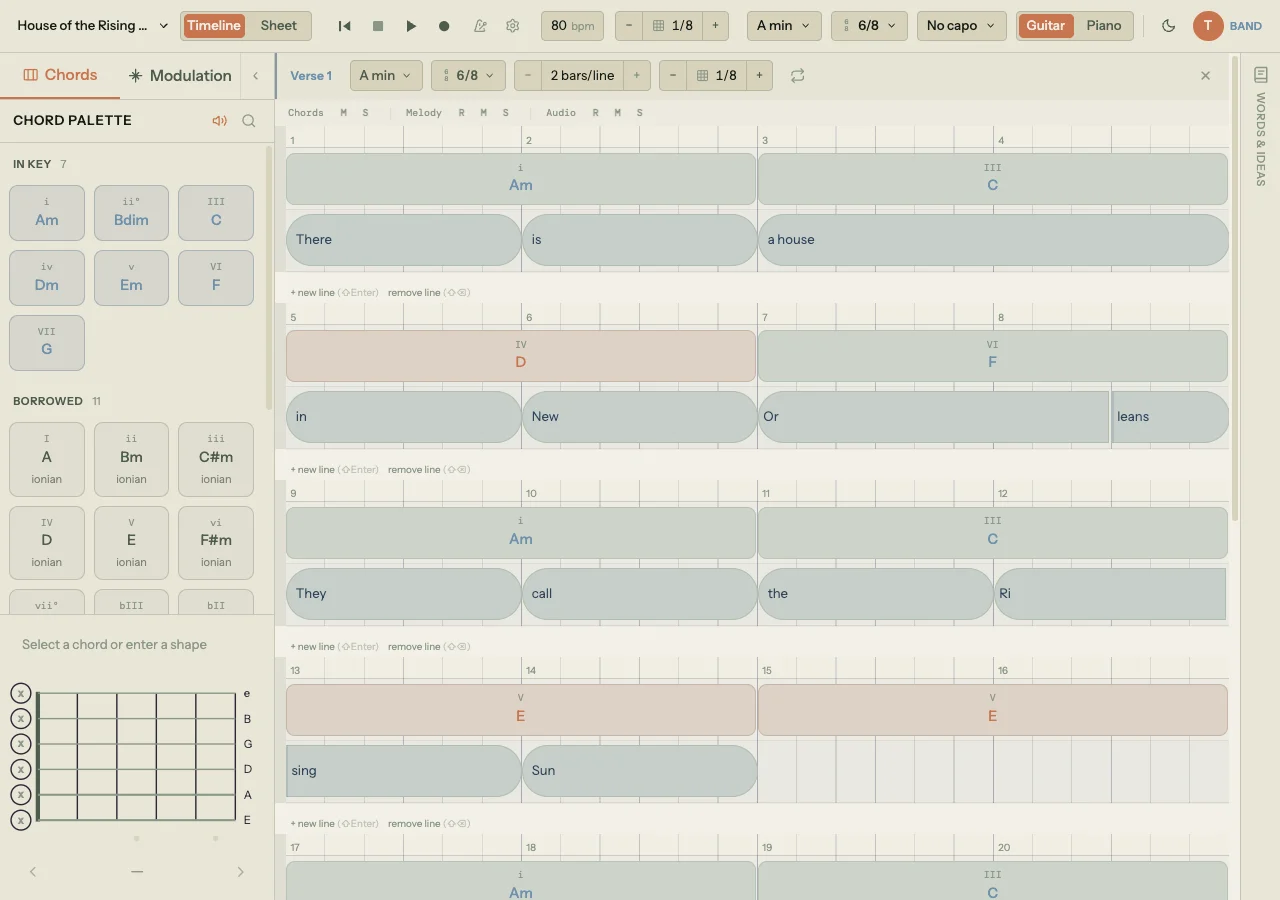
Chapter 4 covered the three ways into a song: lyrics, chords, or melody. Whichever you chose, the blocks you placed landed on a beat grid inside a section. This chapter is about the grid itself: how sections contain it, how lines divide it, and how grid divisions control how precisely blocks snap into place. If the previous chapters were about what to put on the canvas, this one is about the canvas.
5.1 How sections organize a song
A section is the top-level container for your song structure. Each section represents one structural part of the song: a verse, a chorus, a bridge, an intro, an outro, or any custom part you define. Sections stack vertically on the timeline, and together their order defines the arrangement of the song.
Each section is independent. It has its own beat count, its own lines, and can optionally override the song's key, mode, or time signature. When you play back the song, sections play in order from top to bottom (unless you've looped a specific section). When you export a PDF chord sheet or MIDI file, the same section order determines the output.
Section types
Song Cage recognizes seven section types. Each gets its own color swatch in the interface so you can visually scan the arrangement at a glance:
- Verse
- Chorus
- Pre-Chorus
- Bridge
- Intro
- Outro
- Section (the custom/generic type)
The type is a label, not a constraint. A "Verse" section doesn't behave differently from a "Chorus" section. Both hold chords and lyrics on the same kind of beat grid. The types exist to keep you oriented when a song has fifteen sections and you need to find the second bridge.
5.2 Creating and naming sections
Click + new section at the bottom of the last line in any section. Song Cage inserts a new section below the current one, with the generic "Section" type and a default name like "Section 1" (or "Section 2", "Section 3", and so on as you add more). You can also press ⌘⇧Enter on Mac (Ctrl+Shift+Enter on Windows/Linux) to insert a section below whichever section you're currently working in.
New sections start with one line of two measures, sized to the song's time signature. In 4/4 time that's 8 beats. In 6/8 time it's 6 beats. In 3/4 time it's 6 beats. The section is immediately usable: you can start dropping chords and lyrics on it without any further setup.
Assigning a type
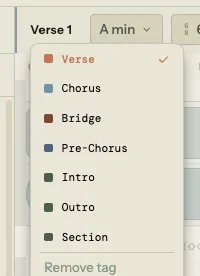
A freshly created section shows + section tag in its header instead of a name. Click that text to open the section type dropdown. Pick a type and Song Cage auto-names the section based on what you chose and what already exists:
- Pick "Verse" when there are no other verses: the section becomes Verse.
- Pick "Verse" when a Verse already exists: the section becomes Verse 2.
- Pick "Chorus" for the first chorus: Chorus. A second one: Chorus 2.
The same pattern applies to all seven types. If you want a custom name instead, double-click the section name in the header and type whatever you like.
Removing a type
If you assigned a type and want to go back to an untagged section, open the type dropdown and click Remove tag at the bottom. The section keeps its current name but the colored type indicator disappears.
5.3 The section header

Every section has a header bar that runs across its top edge. Reading left to right, here's what each control does:
Section name/tag. Click to open the type dropdown. Double-click to edit the name directly.
Key badge. Shows the effective key for this section (either inherited from the song or overridden). Click to open a picker where you can select a root note and mode, or revert to "Inherit from song." Overridden keys get a highlighted badge so they stand out visually. See §5.7 for details.
Time signature badge. Shows the effective time signature. Click to pick from eight presets (2/4, 3/4, 4/4, 5/4, 6/8, 7/8, 9/8, 12/8) or revert to the song default. Changing a section's time signature recalculates its beat count to preserve the current number of bars. See §5.7 for details.
Bars per line. A
−/+control showing the current value (for example, "2 bars/line"). This is how you control how much content fits on each visual line. More on this in §5.4.Grid division. A
−/+control with a grid icon showing the current snap resolution (for example, "1/4"). This controls how finely blocks snap to the grid. More on this in §5.6.Loop toggle. Click to loop this section during playback. Shift+click to extend the loop to include this section and all sections after it. Click again on a looped section to clear the loop.
Delete. The
×at the far right removes the section and all its chord and lyric blocks. An undo toast appears immediately, so if you clicked by mistake, you can recover the section with one click.
5.4 Lines and bars per line
A section isn't one continuous horizontal strip. It's divided into lines, each showing a fixed number of bars. Lines are visual rows: they determine how the beat grid wraps on screen, the same way text wraps in a paragraph.
The bars-per-line control
The default is 2 bars per line, which means each visual row shows two measures of music. In 4/4 time, that's 8 beats per line. In 6/8 time, that's 6 beats per line (since each 6/8 measure has 3 quarter-note beats).
Use the − and + buttons in the section header to change this between 1 and 8 bars per line. The effect is immediate:
- Fewer bars per line gives each block more horizontal space. This is useful when you're fine-tuning a chord change or positioning a syllable on a specific beat. It acts like zooming in.
- More bars per line fits more of the arrangement on screen at once. This is useful when you want to see the shape of a whole verse or compare sections side by side. It acts like zooming out.
Each line scales to fill the full width of the timeline area. Song Cage calculates the pixels-per-beat for each line automatically: the wider your window, the more room each beat gets at any given bars-per-line setting. There's no separate zoom slider. Bars per line is the zoom control.
Adding and removing lines
New sections start with a single line. You'll almost always want more.
- Add a line: Click + new line below any line, or press
⇧Enter(Shift+Enter). The new line appears after the current one, and any blocks on later lines shift forward to make room. - Remove a line: Click remove line below the line you want to remove, or press
⇧⌫(Shift+Backspace). The blocks on that line are deleted and blocks on later lines shift backward to close the gap. You can't remove the last remaining line in a section.
When you add a line, Song Cage extends the section's total beat count by one line's worth of beats. When you remove one, it shrinks. The beat count is always a whole number of lines.
5.5 The beat grid
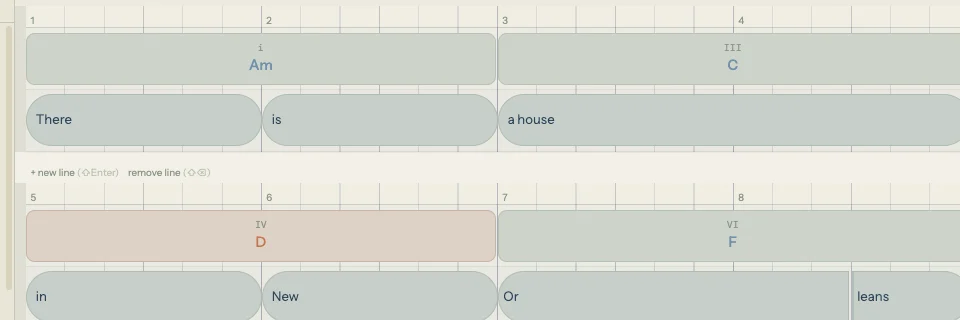
Each line displays a beat ruler along its top edge, showing measure numbers (1, 2, 3...) at regular intervals. When the lines are wide enough (roughly one bar per line or fewer), individual beat ticks appear between the measure markers. When lines are packed with more bars, the beat ticks hide to reduce visual clutter, but the measure numbers stay.
Below the ruler, two lanes stack vertically:
- The chord lane on top, where chord blocks sit.
- The lyric lane below, where lyric blocks (with their melody notes) sit.
Both lanes share the same beat grid. A chord at beat 4 and a lyric at beat 4 are vertically aligned because they occupy the same moment in the section. Everything you drag or resize on the timeline snaps to this grid, at the precision set by the grid division control.
The grid itself is drawn as faint vertical lines behind your blocks. Which lines appear depends on the grid division and how much space is available:
- Measure lines are always visible (the strongest lines).
- Beat lines appear when the grid is fine enough and there's room to show them.
- Subdivision lines (eighths, sixteenths, thirty-seconds) appear progressively as you increase the grid division precision and decrease bars per line.
In compound meters like 6/8, the grid groups beats in threes instead of twos or fours, matching the natural feel of the meter.
5.6 Grid divisions
The grid division control (the − / + with the grid icon) sets how finely blocks snap when you drag or resize them. It also controls which subdivision lines appear on the grid.
Available divisions by time signature
The available divisions depend on your section's time signature:
Simple meters (2/4, 3/4, 4/4, 5/4):
- 1/2 (half note): blocks snap every two beats
- 1/4 (quarter note): blocks snap to every beat. This is the default.
- 1/8 (eighth note): blocks snap to half-beats
- 1/16 (sixteenth note): blocks snap to quarter-beats
- 1/32 (thirty-second note): the finest resolution
Compound meters (6/8, 9/8, 12/8):
- dotted 1/4: blocks snap every 1.5 beats (one dotted quarter, the natural pulse of compound time)
- 1/8: blocks snap every half-beat
- 1/16 and 1/32: same as simple meters
Odd eighth meters (7/8):
- 1/8, 1/16, 1/32 only. The coarser divisions (half note, quarter note) don't map cleanly to asymmetric groupings, so they're not offered.
How to use it
The − button makes the grid finer (snaps to smaller note values). The + button makes it coarser (snaps to larger values). If you're positioning a lyric syllable that falls on an eighth-note pickup, set the grid to 1/8. If you're placing chords that last a full measure each, 1/4 or 1/2 is all you need.
The division is a global setting: it applies to every section at once. If you change it while working in one section, the snap precision updates everywhere.
A good default workflow: leave the division at 1/4 for most work. Drop to 1/8 or 1/16 when you need to fine-tune syllable timing or place a chord on an offbeat. Come back to 1/4 when you're done.
5.7 Section overrides
By default, every section inherits the song's key, mode, and time signature from the toolbar. But Song Cage lets you override any of these per section, which is how you build songs with key changes or meter changes that happen at a specific structural boundary.
Key and mode override
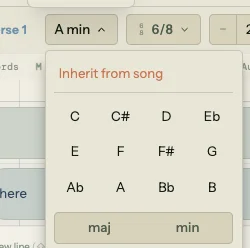
Click the key badge in the section header. A dropdown appears with all twelve notes and a major/minor toggle. Pick a key and mode, and the section now lives in that key. The override takes effect immediately:
- The chord palette re-ranks suggestions for that section using the new key.
- Borrowed chords shift to the parallel modes of the new key.
- Roman numeral labels on existing chords in that section update to reflect their function in the new key.
The badge changes to a highlighted style so you can see at a glance which sections have overrides. To revert, click the badge again and choose Inherit from song.
Key overrides are also how modulation works in practice. If your song is in C major and the bridge lifts to D major, you don't move every chord. You override the bridge section's key to D major, and everything in that section (suggestions, labels, modulation routes) reorients to the new key.
Time signature override
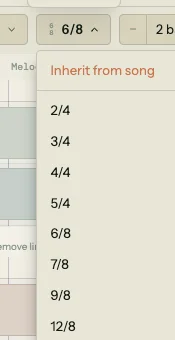
Click the time signature badge. Pick from the eight presets: 2/4, 3/4, 4/4, 5/4, 6/8, 7/8, 9/8, or 12/8. Song Cage recalculates the section's beat count to preserve the number of bars: if a section was four bars of 4/4 (16 beats) and you switch to 3/4, it becomes four bars of 3/4 (12 beats).
The grid lines, snap divisions, and beat ruler all update to match the new meter. Any blocks already placed stay at their beat positions, but the visual layout changes around them.
To revert, click the badge and choose Inherit from song.
5.8 Track controls

Below each section header, a narrow track panel shows three track labels: Chords, Melody, and Audio. Each track has M (mute) and S (solo) buttons. Melody and Audio also have an R (arm) button for recording.
- Mute silences a track during playback. Mute the chords track to hear only the melody, or mute everything except the audio track to review a vocal take.
- Solo is the inverse: it plays only the soloed tracks and silences everything else. Solo a single section's melody to focus on one phrase.
- Arm enables recording on the Melody or Audio track. Press the transport's record button, and Song Cage captures to whichever tracks are armed. Audio arming is exclusive: arming one section's audio track disarms any other.
These controls are per-section, so you can mute the chords in your verse while keeping them audible in the chorus. Chapter 10 covers recording in depth.
5.9 Deleting a section
Click the × at the far right of the section header. The section disappears along with every chord and lyric block it contained. An undo toast appears at the bottom of the screen with a single "Undo" button. Click it to restore the section exactly as it was.
There's no confirmation dialog. The undo toast is the safety net. If you don't undo within a few seconds, the deletion is final and the data syncs away.
That's the grid. Every block you place, drag, or resize obeys the rules in this chapter: sections contain lines, lines contain beats, beats snap to the grid division, and overrides let any section break away from the song defaults when the music calls for it. The next chapter covers the first thing most writers put on the grid: lyrics.