Press play and the timeline comes alive. Chords strum or sustain in the instrument you've chosen, melody notes sing through a Mellotron voice, and a metronome keeps time underneath. Loop a section, switch the rhythm pattern, and adjust the tempo without stopping.
What you'll learn
- How the transport controls start, pause, stop, and reset playback
- How to set and adjust the tempo
- How the metronome and count-in work
- How to loop one section or a range of adjacent sections
- How rhythm patterns shape the way chords sound during playback
- How Mellotron melody voices turn your pitch data into sound
- Where all the playback settings live and what each one does

The previous chapters built a song: sections, lyrics, chords, melody, voicings, and keys. This chapter is about hearing it. The transport controls in the toolbar are the entry point. Everything else connects through them: the metronome, the count-in, the looping, the rhythm patterns, and the melody voices.
13.1 The transport
Five buttons in the toolbar control playback:
- Return to start. Resets the playhead to beat 1 of the first section. Use this to jump back to the beginning without stopping.
- Stop. Halts playback, cancels any count-in or recording in progress, and resets the playhead to where it was before you pressed play.
- Play / Pause. Starts playback from the current cursor position. Press again to pause (the playhead freezes in place). Press again to resume from where you left off.
- Record. Arms recording. When armed, pressing play triggers a one-bar count-in, then recording begins. Press record again while playing to disarm. Chapter 10 covers the recording workflow in detail.
- Metronome. Toggles the click track on or off. When on, you hear an accent click on beat 1 and lighter clicks on the remaining beats in each measure. During recording, the metronome always plays regardless of this toggle.
The transport reads from the cursor position. Click anywhere on the timeline to move the cursor, then press play. Playback starts from that beat.
13.2 Tempo
The tempo display sits in the toolbar, showing the current BPM. Two ways to change it:
Drag vertically. Click the BPM number and drag up to increase or down to decrease. The sensitivity is about 2 pixels per BPM, so small movements make fine adjustments.
Double-click to type. Double-click the BPM number to enter a precise value. Type the tempo and press Enter. The valid range is 20 to 300 BPM.
Tempo changes take effect immediately, even during playback. The engine reschedules all upcoming events at the new speed without interrupting the current beat. If you're not sure what tempo to use, start at 120 and adjust while listening.
13.3 The metronome and count-in
The metronome
The metronome plays two tones: a higher-pitched accent on beat 1 of each measure and a softer click on the remaining beats. Both are simple sine waves (G5 for the accent, C5 for the normal click), so they cut through without masking your chords or melody.
The metronome respects the time signature of each section. In 6/8 time, you hear six clicks per measure. In 4/4, four. If your song switches time signatures between sections, the metronome adjusts automatically at each section boundary.
Count-in
When recording is armed and you press play, the transport plays one bar of metronome clicks before the music starts. This gives you a chance to feel the tempo and prepare. The count-in uses the time signature of the section at the cursor: in 4/4, you hear four clicks; in 3/4, three.
During the count-in, a large beat number pulses in the center of the screen so you can see where you are even without headphones. Once the final click sounds, playback and recording begin simultaneously.
13.4 Looping
Looping lets you repeat a section (or a range of sections) indefinitely during playback. This is useful for practicing a tricky passage, auditioning chord changes, or recording multiple takes over the same section.
Looping a single section
Each section header has a loop button (a circular arrow icon). Click it to loop that section. During playback, when the playhead reaches the end of the looped section, it jumps back to the beginning and keeps going.
Looping a range
Shift+click the loop button on a different section to extend the loop. The loop range expands to cover every section between the first looped section and the one you shift-clicked. This is how you loop a verse and chorus together, for example.
Clearing a loop
Click the loop button on any looped section to clear the loop. Playback continues linearly from wherever the playhead is.
Looping and the cursor
When a loop is active, playback still starts from the cursor position. If the cursor is inside the loop range, playback begins there and loops at the boundary. If the cursor is outside the loop range, playback begins at the cursor and enters the loop when it reaches the loop start.
13.5 Rhythm patterns
When you press play, chords don't just sustain as a single block of sound. The accompaniment engine applies a rhythm pattern that controls how the notes are triggered: the timing, the direction (downstroke vs. upstroke), the velocity, and which strings or notes sound on each hit.
Choosing a pattern
Open the settings panel (gear icon in the toolbar) and find the Rhythm Pattern dropdown. The available patterns depend on the current instrument and time signature:
Guitar patterns (4/4):
- Single Strum: one downstroke per chord, no repeat. The simplest option.
- Folk Strum: a two-bar down-down-up-up-down-up pattern. This is the classic campfire strum.
- Travis Pick: alternating thumb bass notes with finger-picked upper strings. Think Bob Dylan or Paul Simon.
Piano patterns (4/4):
- Rhythmic: block chord hits with accented downbeats.
- Coconut: block chords with dotted bass fills between them. Named after Harry Nilsson's "Coconut."
Waltz patterns (3/4):
- Waltz Strum (guitar): three downstrokes per measure.
- Waltz (piano): oom-pa-pa, root note followed by upper voices on beats 2 and 3.
- Waltz Arpeggio (piano): root note, then cycling through the upper chord tones one at a time.
The pattern selector automatically filters to show only patterns compatible with the current instrument and time signature.
How patterns work
Each pattern defines a sequence of strokes, each with a beat offset, a direction, and a velocity. The engine tiles the pattern across the duration of each chord block. For a chord that lasts four beats with a two-beat pattern, the pattern plays twice.
Guitar strokes have physical character: downstrokes sweep all six strings low-to-high with a slight stagger (about 30 milliseconds per string), while upstrokes brush only the top three or four strings high-to-low. The stagger gives strums their natural feel.
Piano strokes attack all notes nearly simultaneously (12 milliseconds of spread), since a pianist's hand hits all keys at once.
Humanize
A Humanize toggle in the settings panel adds slight random variations to the timing and velocity of each stroke. The result is a looser, more natural feel. Without it, every strum lands exactly on the grid. With it, notes drift by a few milliseconds and velocities vary slightly, the way a real player's hand does.
13.6 Melody voices
Melody playback uses sampled Mellotron instruments. The Mellotron is a tape-based keyboard from the 1960s, famous for its warm, slightly wobbly character. Song Cage includes four voices:
- Flute: the Mk II Flute tape set. This is the default.
- Female: chamber female vocals.
- Male: chamber male vocals.
- Violins: the Mk II three-violins tape set.
Each voice can also be set to Off, which disables melody playback entirely (the notes are still stored, just silent).
To change the voice, open the settings panel and choose from the Melody Voice options. The voice applies globally to all melody notes in the song.
How melody sounds during playback
Each melody note is triggered at the beat position defined by its syllable split. The duration matches the length of the syllable segment, so a long held syllable rings longer than a quick one. A short fade-in (30 milliseconds) smooths the attack of each sample to avoid clicks.
The melody synth is monophonic: one note plays at a time, matching the single-voice nature of lyrics. When a new note starts, the previous one releases.
13.7 Mute and solo
Chapter 5 introduced the M (mute) and S (solo) buttons on each track in the section header. During playback, these control which tracks you hear:
- Mute a track to silence it. Mute the chord track to hear only melody and audio. Mute everything except the melody to focus on pitch.
- Solo a track to hear only that track (and any other soloed tracks). When any track is soloed, every non-soloed track goes silent. Click solo again to clear it.
Mute and solo are per-section and per-track, so you can mute chords in the verse but leave them audible in the chorus.
Live changes
You can toggle mute and solo while playback is running. The engine reschedules within a fraction of a second, so the change takes effect almost immediately. The same applies to editing chords, lyrics, or melody during playback: the engine picks up the change and adjusts without stopping.
13.8 The settings panel
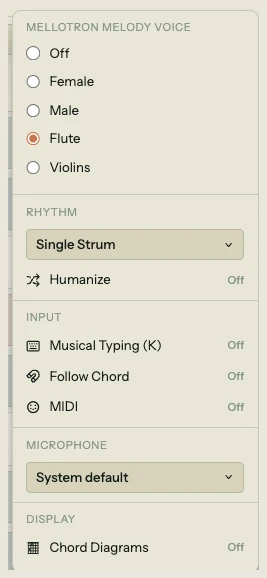
The gear icon in the toolbar opens the settings panel, which gathers all the playback and input options in one place:
- Melody Voice: Off, Female, Male, Flute, Violins
- Rhythm Pattern: dropdown filtered by instrument and time signature
- Humanize: on/off
- Musical Typing: enables the computer keyboard as a MIDI input for melody recording (see Chapter 10)
- Follow Chord: constrains typed or played notes to chord tones (see Chapter 10)
- MIDI: enable external MIDI controller input, with device selection
- Microphone: select the input device for audio recording
- Chord Diagrams: show or hide mini voicing diagrams on chord blocks (see Chapter 12)
Most of these settings take effect immediately, even during playback. Switching the rhythm pattern, toggling humanize, or changing the melody voice all update in real time.
That covers the playback engine: transport controls, tempo, metronome, count-in, looping, rhythm patterns, melody voices, mute/solo, and the settings panel. The next chapter covers exporting your song as a PDF chord sheet or MIDI file.