A tour of the main regions of the app: toolbar, sidebars, lanes, and the two ways to view a song.
What you'll learn
- The difference between Timeline view and Sheet view, and when to reach for each
- Where chords, lyrics, and melody actually live on the canvas
- What each sidebar does and how to open it
- What every control in the toolbar is for
Open Song Cage for the first time and there's a lot on screen: a toolbar across the top, a sidebar on the left, a canvas in the middle, another sidebar on the right. Chapter 1 was philosophy. This chapter is geography. We'll walk through every region so that when a later chapter says "open the chord sidebar" or "hit the view toggle" you already know where to look.
If you want to follow along while reading, replay the guided tour from the user menu in the top right. It loads "House of the Rising Sun" as a demo song: A minor, 6/8 time, one verse, real chords and lyrics already on the grid. Every screenshot in this chapter uses that song, so if you load it and follow along, your screen will match the examples.
2.1 Timeline View
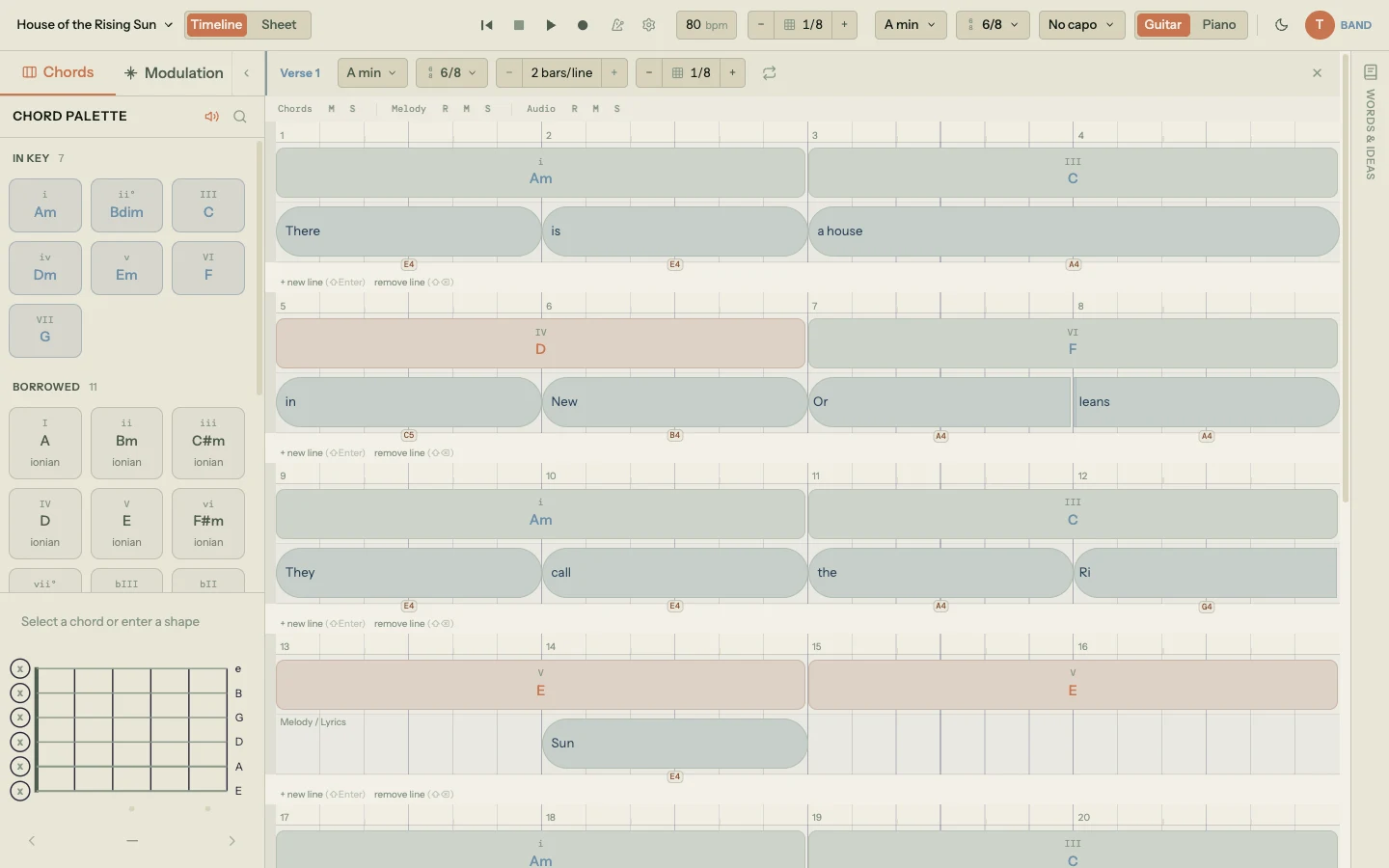
Timeline view is the main canvas. It's where a song grows from a handful of chord blocks into a full arrangement.
At the top of each section there's a beat ruler showing bars and beats. In 6/8 time you'll see six beats per bar; in 4/4 time, four. Below the ruler, each section stacks two horizontal lanes:
- The chord lane on top, where chord blocks sit on the beat grid. In the House of the Rising Sun demo, you'll see Am, C, D, and F spaced across the first line, then Am, C, E, E across the second.
- The lyric lane below, where lyric blocks sit at the beat they're sung on. "There is a house in New Orleans" splits across the first line; "They call the Rising Sun" across the second.
Each section has its own beat count, optional key or mode override, and visual line breaks. The demo song is one "Verse 1" section with four lines of two bars each, totaling 96 beats.
You can zoom the timeline horizontally using the − and + controls in the toolbar. Zoom is measured in pixels per beat and the default is 60. Zoom in when you're fine-tuning a chord change or a syllable split; zoom out when you want to see the whole arrangement at once.
Everything on the timeline snaps to the grid. The snap division (how fine the grid is) is controlled separately, from whole beats all the way down to 1/32 notes. Chapter 5 will cover sections, zoom, and snap in depth.
Timeline view is where you'll spend most of your time if you care about rhythm, beat alignment, or fitting a chord change to a specific melody note.
2.2 Sheet View
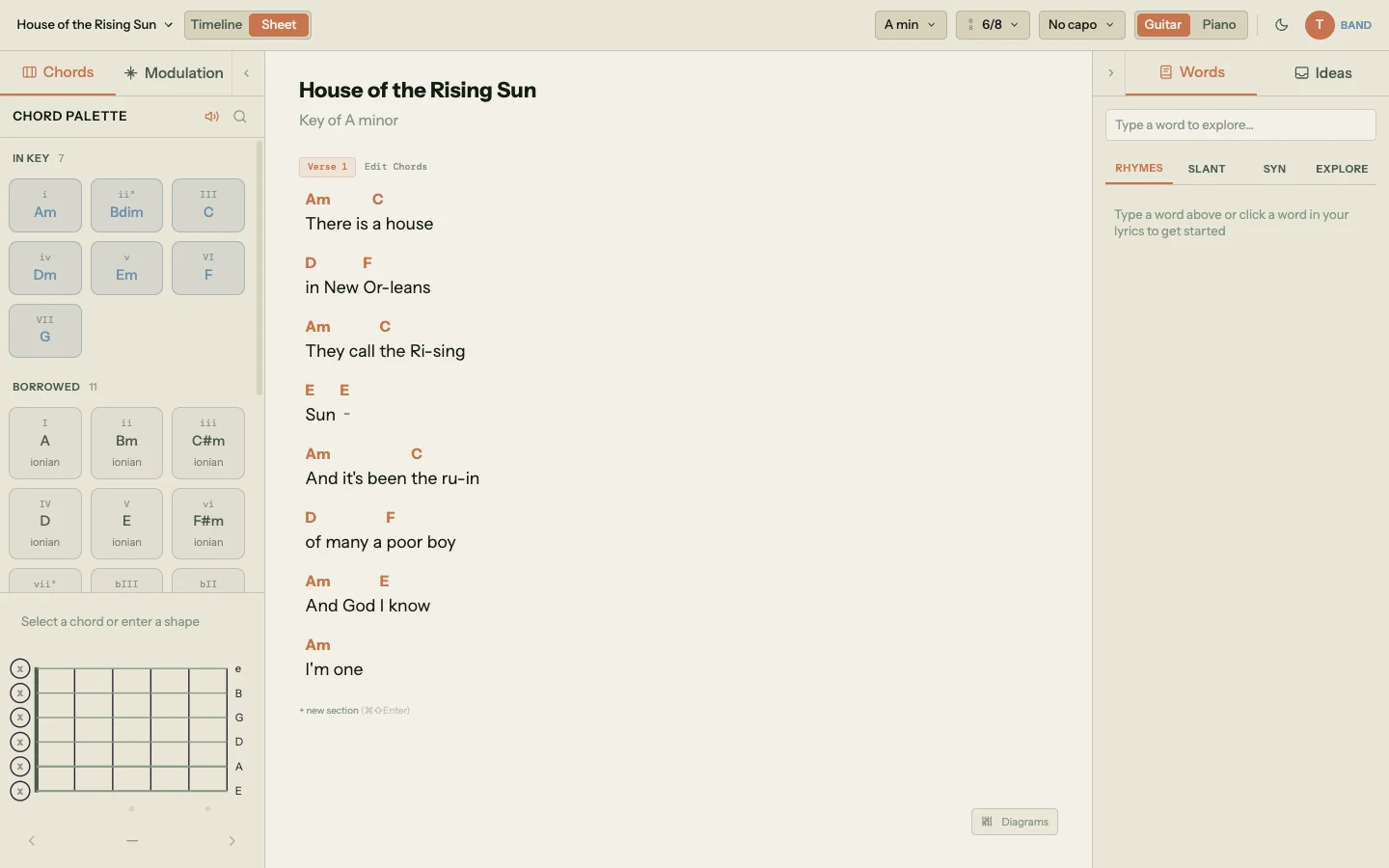
Sheet view shows the same song as a printable chord-lyric layout. No beat grid, no draggable blocks: just chord names floating above the words, grouped by section.
It's the same underlying data as the timeline. Every chord and lyric you see in sheet view is the same chord and lyric you see in timeline view, rendered differently. Edit a lyric here and the timeline updates; edit a chord here and the timeline updates. There's no conversion, no import, no export between the two views. They're two windows on the same thing.
Sheet view is the better place to be when:
- You're writing lyrics first and don't want to worry about beat positions yet. Click into a section and type; it feels like a text editor.
- You're reading back through a song to check if it makes sense as words.
- You want a printable version. Sheet view is what the PDF export is based on (Chapter 14 will cover export).
In the House of the Rising Sun demo, sheet view shows "There is a house in New Or-leans" with Am and C above it, then "They call the Ris-ing Sun" below with Am and C above that. The hyphens are how syllable splits render in text form. Chapter 8 will cover splits in detail.
2.3 Switching Between Views
The view toggle lives in the toolbar. It flips between timeline and sheet with one click. No dialog, no confirmation, no loading.
Your work never moves when you switch. Both views read from the same stored chord and lyric blocks; they just render them differently. If you move a lyric block to beat 12 in timeline view, switch to sheet view, then switch back, the block is still at beat 12. If you type a new word in sheet view, switch to timeline, the word is there, sitting on the beat you implied by its position in the line.
In practice, most writers go back and forth several times per session. Get the words down in sheet view, switch to timeline to nudge the rhythm, switch back to refine a phrase, switch forward to add a chord. Neither view is "primary"; they're tools for different jobs.
2.4 The Toolbar
The toolbar runs across the top of the window. From left to right, you'll find:
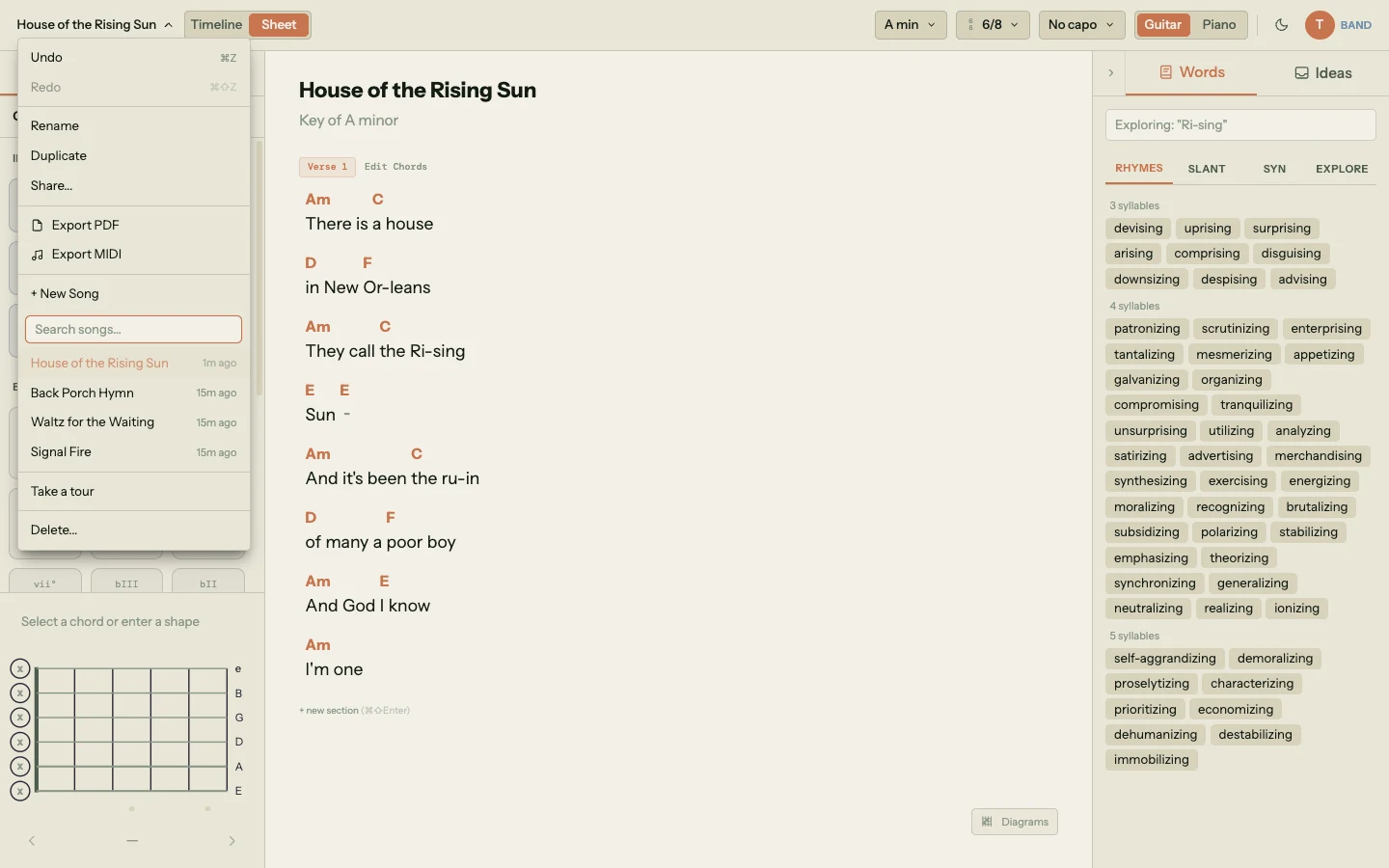
- Song menu. New song, open a recent song, rename, duplicate, delete. This is where you manage your song list without leaving the canvas.
- Key chip. Shows the current key (for the demo song, A minor). Click it to change the key or mode. Chord suggestions, borrowed chords, and modulation routes all read from this.
- Tempo. The current BPM. Click to edit. For the demo song, it's 80.
- Transport. Play, pause, and stop. Starts the Tone.js playback engine with metronome and accompaniment. Count-in and looping options live nearby.
- Instrument toggle. Flip between Guitar and Piano modes. Changes how chord voicings are displayed throughout the app: fretboards on guitar, keyboards on piano.
- View toggle. Timeline or Sheet, covered above.
- Export menu. PDF chord sheet or MIDI file.
- User menu. Your account, sign out, theme toggle, and the entry point for replaying the guided tour.
Hover any toolbar button for a tooltip if you're not sure what it does.
2.5 The Left Sidebar
The left sidebar is your song list. It shows every song you've created, with the current song highlighted.
Click any song to switch to it. The current song auto-saves whenever you change it, so switching is safe: nothing is lost. A "New Song" button at the top creates an empty song and switches to it immediately.
If you're collaborating on a song (Band tier), shared songs appear in the same list with a small shared-owner indicator. You can leave a shared song the same way you'd delete one you own, through the song menu.
On narrower screens, the left sidebar collapses. A small button in the toolbar reopens it.
2.6 The Chord Sidebar
The chord sidebar is on the right side of the canvas when you're working with chords. It's where most of the theory lives. It has two main modes, each with its own tab.
Chords Tab
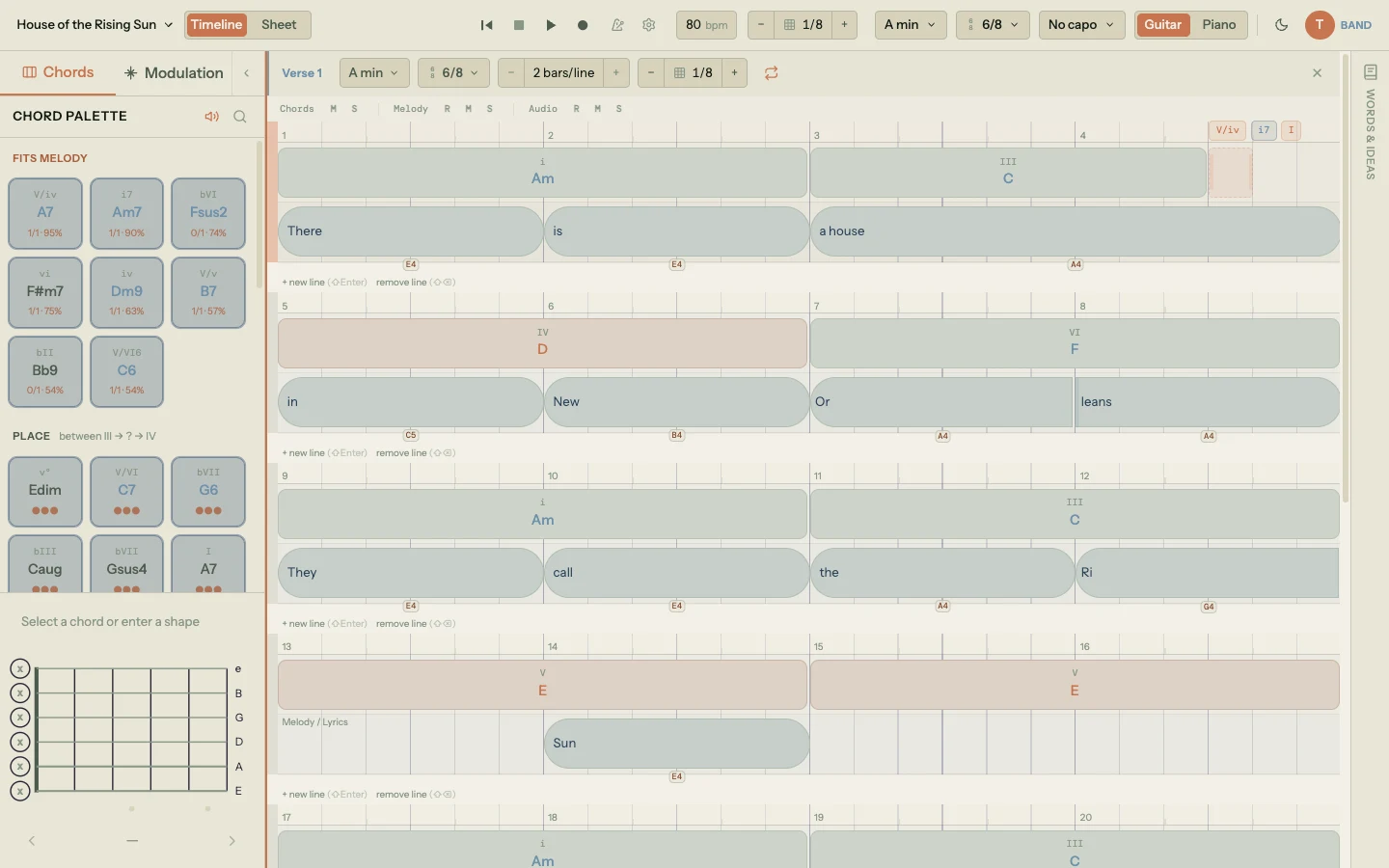
The chord palette is split into three sub-tabs: In Key (the diatonic chords for your current key), Borrowed (chords from parallel modes, like Dorian or Mixolydian), and Secondary Dominants (V chords that resolve to non-tonic targets). Click any chord to drop it onto the selected beat, or drag it onto the timeline directly.
When you click an empty spot in the chord lane, the chords tab lights up with two extra sections near the top: Fits Melody (chords ranked by how well they contain the melody notes at that beat) and Next (chords ranked by how naturally they follow the chord before them). These update live as you move around the timeline. Hover any suggestion for a tooltip that explains why it was ranked the way it was.
The chord sidebar is also how you change chord extensions (7th, sus4, add9, and so on). Click the ⋯ button on any chord chip to open the extensions popover.
Modulation Tab
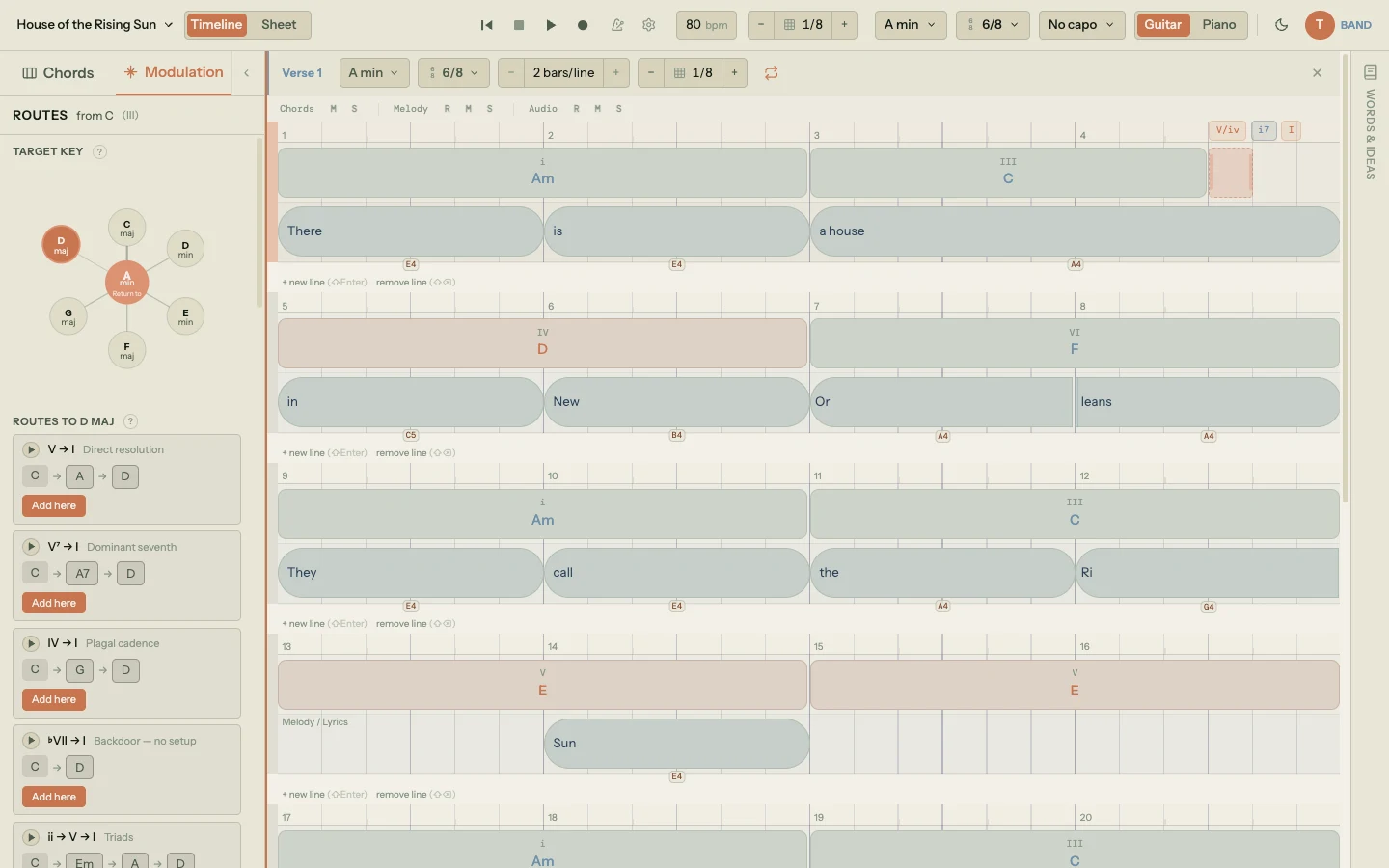
The modulation tab is the key map. Select a target key and it shows you chord-by-chord routes to get there, plus return routes to come home. Routes are named (direct resolution, pivot chord, tritone substitution, and others) so you can pick the one whose feel matches the moment in your song where the key change lands.
2.7 The Right Panel
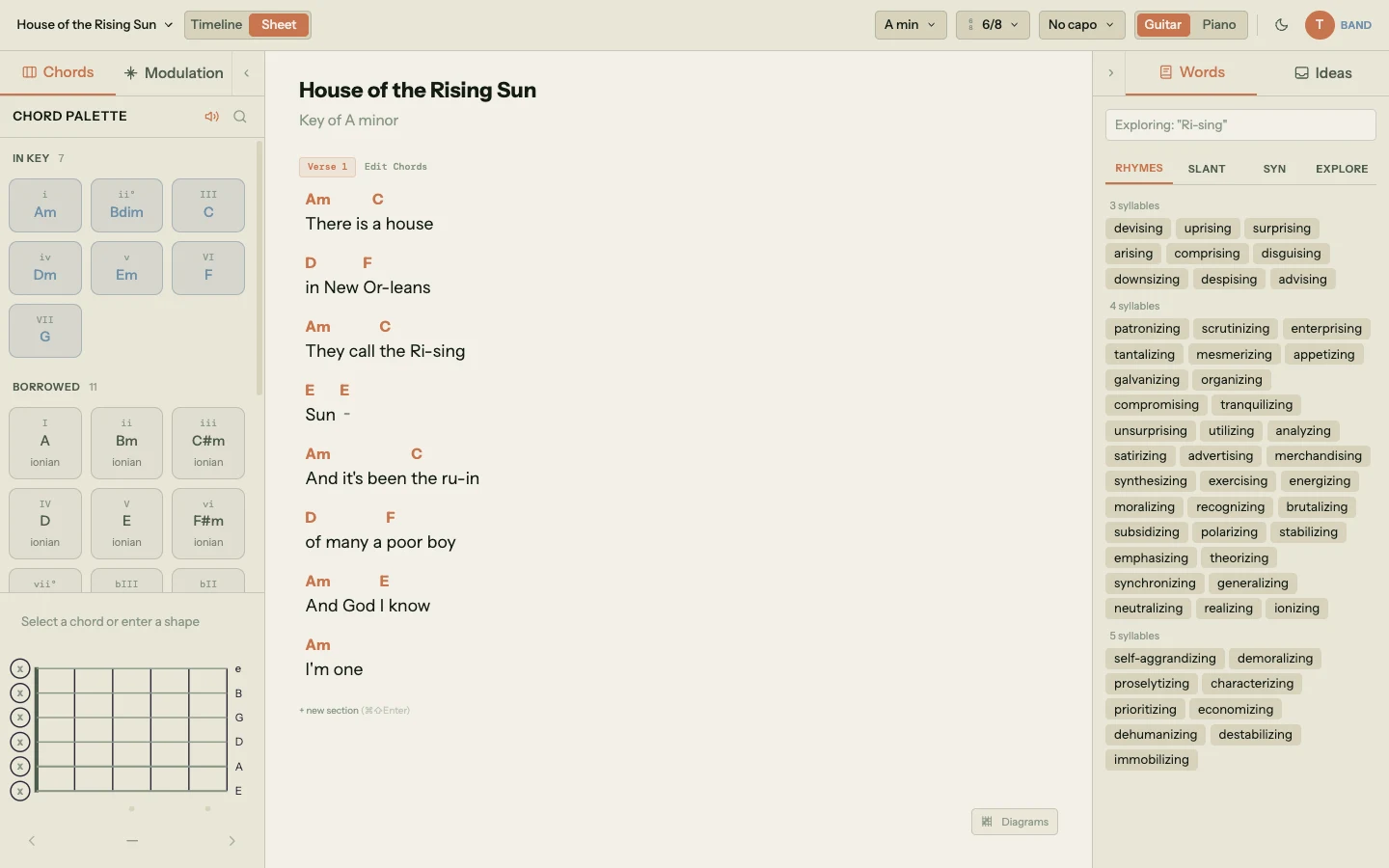
The right panel sits at the far right of the window and has two tabs of its own:
- Words. The word tools panel. Select any word in your lyrics (in either view) and the panel shows rhymes, slant rhymes, synonyms, and the Explore and Word Collider tools for chasing related words. It auto-follows your text cursor, so you almost never need to search.
- Ideas. The Ideas Inbox. Shows captures that synced from the mobile Idea Catcher app: voice memos, lyric scratchpads, chord sketches. Click any idea to promote it into a section on your timeline.
You don't need the right panel open all the time. Close it when you want to give the canvas more breathing room; reopen it from the toolbar when you want rhymes or your inbox back.
That covers the layout. Every later chapter assumes you know where these regions are, so if you ever lose your bearings, this is the page to come back to.