Create your first song, set its key and tempo, add sections, and understand how Song Cage keeps the work from getting lost.
What you'll learn
- How to create a new song from the Song menu
- How to pick a key, mode, tempo, and time signature
- How to add and name sections
- How auto-save keeps your work safe, even offline
- How the same song shows up on every device you use
- How to replay the guided tour whenever you want a refresher
Chapter 1 was philosophy. Chapter 2 was geography. This one is mechanics: walk through creating your first song from scratch, getting the key and tempo right, adding your first section, and understanding how Song Cage keeps the work from getting lost. If you prefer learning by touching, open the app and do each step as you read.
3.1 Create a new song
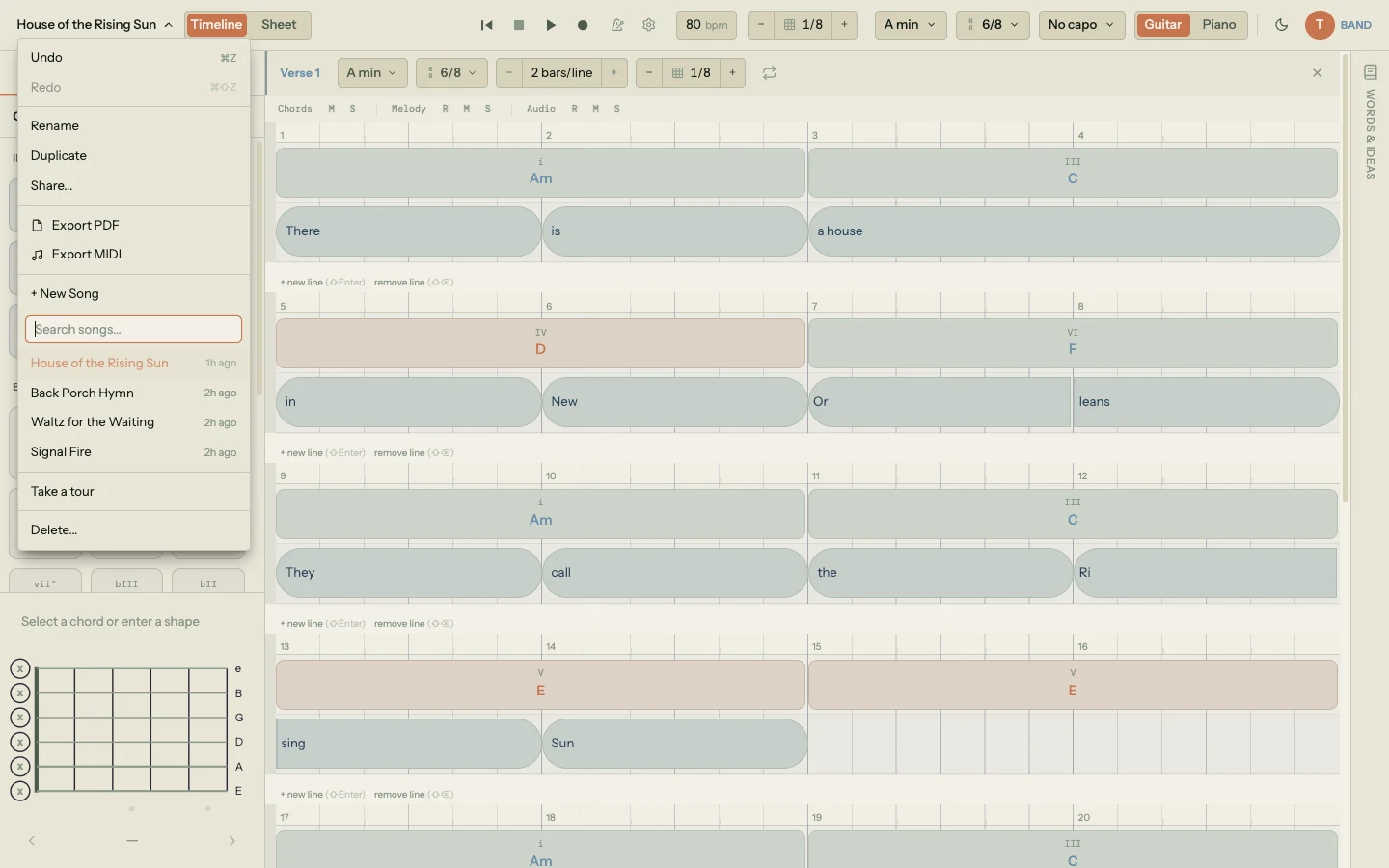
Click the song title in the top-left corner of the toolbar to open the Song menu. Under the list of existing songs you'll see + New Song. Click it. Song Cage creates an empty song titled "Untitled Song 1" (or "2", "3", etc. as you stack them up), switches to it immediately, and drops you onto a blank timeline with a default Section 1.
The song is already real: it's been written to your local database, queued for sync, and is visible in the song list. There's no separate "save" step. The friction between "I want to start" and "I'm writing" is one click.
Rename it now or later. To rename now, open the Song menu again and click Rename, or double-click the title in the toolbar. Working titles like "Signal Fire" help future-you find the song in the list three weeks from now. "Untitled Song 4" does not.
3.2 Set the key, mode, and tempo
A new song opens in C major, 120 BPM, 4/4 time by default. Those defaults are fine for a lot of pop, but most songs you write will want something different. Set the key and tempo early: every chord suggestion, melody-fit score, and modulation route depends on them.
Picking a key
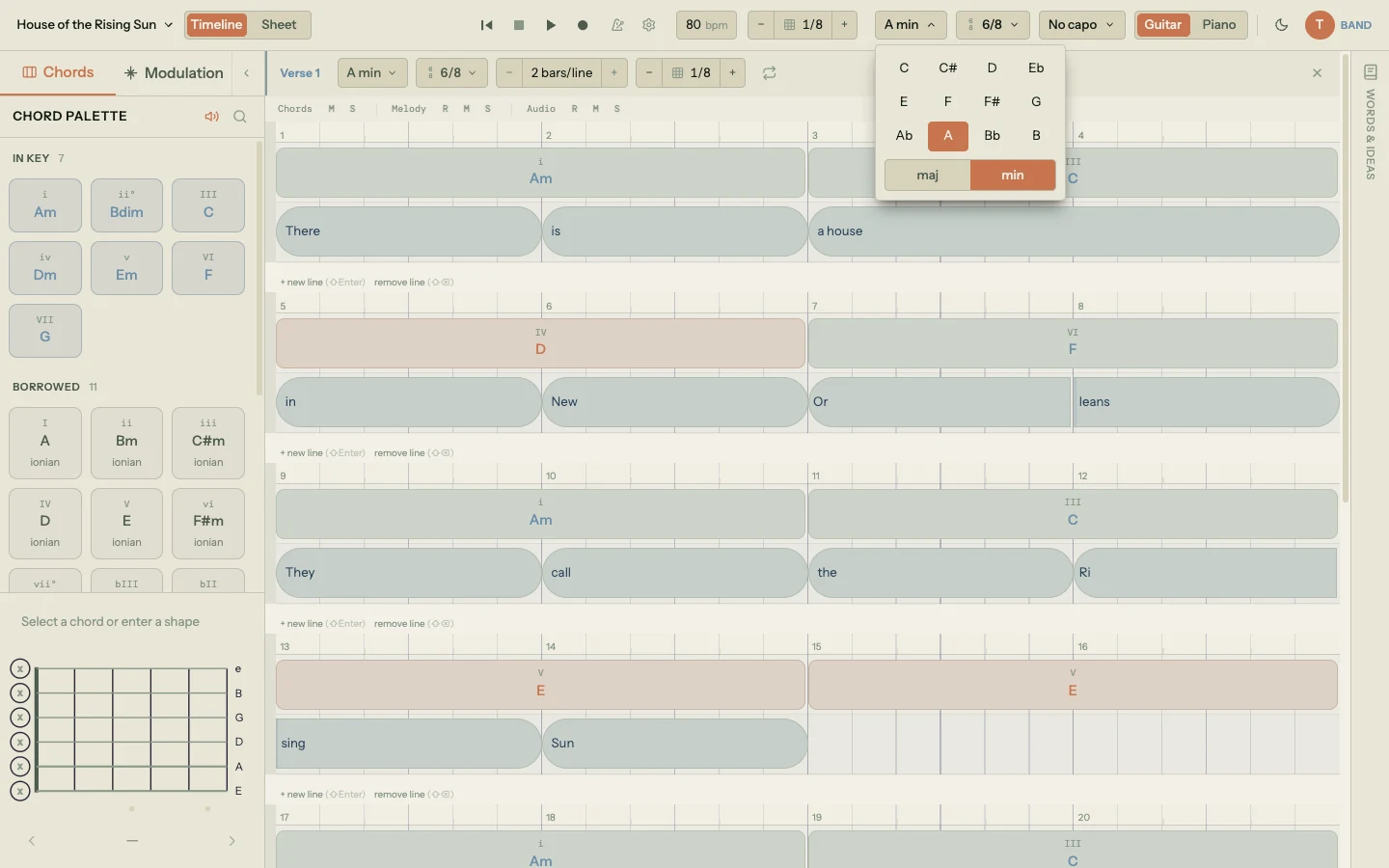
Click the key chip in the toolbar (it reads C maj by default). A key picker opens. Pick a root note and a mode. Everything updates live: the chord palette re-ranks by the new key, borrowed chord sources shift to the new parallel modes, and any chords already on the timeline get re-labeled with their new Roman numerals relative to the new key.
The chords themselves don't transpose when you change the key. If you have a Dm on the timeline and switch from C major to F major, the chord stays D minor (it just gets re-labeled from ii to vi). If you do want to transpose the song, use the Transpose option in the Song menu instead.
For the House of the Rising Sun demo song, the key is A minor. For your first original, pick whichever key feels right on your instrument: guitarists often start in G, E, A, or D major; pianists in C, G, or F major.
Setting the tempo
Click the tempo display (reads 120 bpm) to edit it. Type a number, press Enter, done. Song Cage clamps tempo to a reasonable range (20 to 300) but otherwise lets you use any integer.
If you don't know your tempo yet, leave it at 120 and fix it later. The tempo affects playback timing but nothing about chord or lyric positioning. You can change it at any point without breaking anything that's already on the timeline.
Choosing a time signature
Click the time signature chip (reads 4/4 by default). Pick the numerator and denominator. 4/4 is most common. 3/4 is waltz time. 6/8 is what House of the Rising Sun uses. 5/4, 7/8, and compound meters are all supported.
Changing the time signature rebuilds the grid beneath your chord and lyric blocks. If blocks are already placed, Song Cage adjusts their positions to keep them musically aligned where it can. When in doubt, pick the time signature first, before you start dropping chords.
3.3 Add and name sections
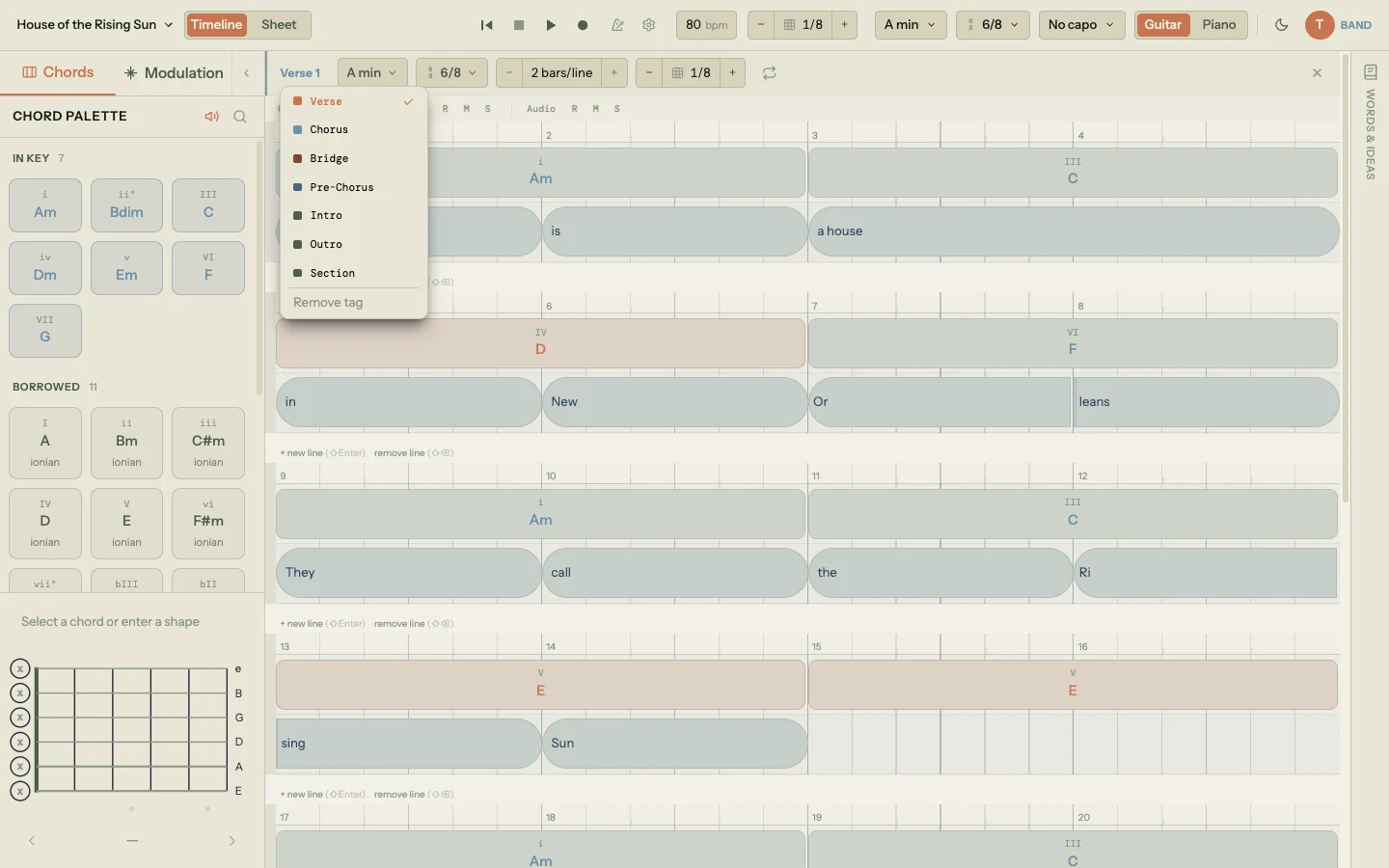
New songs come with one section called Section 1 set to the custom type. You'll almost always want to replace that with a proper section name and type.
Click the section header to rename it. Pick a type from the dropdown: verse, pre-chorus, chorus, bridge, outro, intro, or custom. Song Cage auto-names the section based on the type you pick the first time, so picking "verse" turns Section 1 into Verse 1. Pick "chorus" to get Chorus 1, and so on.
To add more sections, click + new section at the bottom of the timeline, or press ⌘⇧Enter on Mac (Ctrl+Shift+Enter on Windows/Linux). Each section gets its own beat count, optional key override, and independent chord and lyric blocks. The default beat count comes from the section's time signature, but you can adjust it from the section header.
Section order is easy to change: grab a section header and drag it up or down to rearrange. The underlying order updates, and any playback or export reflects the new order immediately.
3.4 The song list and switching between songs
Every song you create shows up in the Song menu's list, ordered by last-modified. Click any song to load it. Switching is safe: the current song auto-saves before the new one loads, so nothing is ever lost in transit.
Search the list using the search field at the top of the Song menu. Song Cage matches against titles, so if you titled a song "Signal Fire" three months ago, typing "sig" will find it instantly.
To delete a song, open it, open the Song menu, and click Delete.... A confirmation dialog appears. Deleted songs are removed from the song list immediately and permanently from your account shortly after.
3.5 How saving and sync work
Song Cage was built so you never think about saving. You just write.
Auto-save
Every change you make to a song (placing a chord, typing a lyric, nudging a block, changing the tempo) triggers an auto-save on a short debounce. If you pause for more than a fraction of a second, the current song state is written to your local database. There's no "Save" button. There's no "Save as" flow. The work persists as you do it.
What happens offline
Song Cage uses local-first storage. When you work offline, changes still write to local storage and the app keeps working normally. When the network comes back, PowerSync quietly uploads everything that changed, merges any conflicts, and brings your local database back in line with the server. Nothing you wrote offline is lost.
Cross-device sync
Open Song Cage on your laptop, write for an hour, close the tab. Open it on your phone later that day. Your song is there, with the most recent edits from your laptop already applied. No import, no export, no file sync to think about.
The same logic applies in reverse. Captures you make in the mobile Idea Catcher (voice memos, lyric scratchpads, chord sketches) sync to the desktop Ideas Inbox automatically.
3.6 Replaying the guided tour
Every new account starts with a guided tour that loads House of the Rising Sun as a demo song and walks through the core features. Most users click through it once on signup and then close it.
If you want it back, open the user menu in the top right (your avatar) and click Take a tour. The tour loads the demo song, walks through each panel, and automatically dismisses the overlays when you reach the end. Your previous song is restored when the tour finishes.
The tour is skippable at any step. Nothing is gated behind it.
That's the starting line. The next chapter is where the mental model shifts: Song Cage doesn't expect you to start with chords. You can start anywhere, and the next chapter walks through why and how.