Turn your song into something you can print, share, or open in a DAW. PDF chord sheets carry your lyrics, chord names, and voicing diagrams. MIDI files carry your chord voicings and melody timing as playable tracks.
What you'll learn
- Where to find the export options and what formats are available
- What a PDF chord sheet contains and how the layout works
- How mini fretboard and keyboard diagrams appear on the printed page
- What a MIDI export includes: chord track, melody track, tempo, and time signature
- How capo and voicings carry through to each format
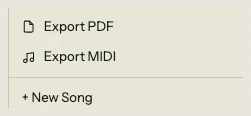
The previous chapters covered building a song and hearing it played back. This chapter is about getting it out. Two export formats are available from the export menu in the toolbar (or from the song menu under the song title): PDF Chord Sheet and MIDI File.
14.1 The export menu
The export menu lives in the toolbar. Click it to see two options:
- PDF Chord Sheet: generates a printable A4 document with chord names above lyrics, voicing diagrams, and song metadata.
- MIDI File: generates a standard MIDI file with separate tracks for chords and melody.
Both exports require a Pro or Band subscription. Free accounts can create songs, play them back, and collaborate, but the export buttons are locked until you upgrade. Chapter 17 covers subscription tiers in detail.
The export runs entirely in the browser. Nothing is uploaded to a server. When you click an export option, the file generates locally and downloads immediately.
14.2 PDF chord sheet
The PDF is an A4 portrait page with a clean, print-friendly layout. Here's what appears on the page, top to bottom:
Header
The top of the page shows:
- Song title in large bold text on the left.
- Metadata strip on the right: key, mode, tempo (BPM), time signature, and capo position (if set and in guitar mode).
A thin divider line separates the header from the content.
Chord diagram strip
At the start of each section, a row of mini voicing diagrams shows every chord used in that section. In Guitar mode, these are tiny fretboard diagrams with dots, open-string circles, and mute markers. In Piano mode, they're mini keyboards with highlighted keys. Each diagram has the chord name printed below it.
The diagram strip gives the reader a visual reference for fingerings before they encounter the chords in context. If a section uses more chords than fit in one row, the strip wraps to the next line.
Section content
Each section prints with a bold section name (Verse 1, Chorus, Bridge, etc.), followed by lines of chord names above lyrics. The chords sit at the horizontal position corresponding to where they fall in the bar, so readers can see at a glance which chord aligns with which word.
If a section overrides the song's key or time signature, the override appears next to the section name.
Pagination
Long songs automatically flow across multiple pages. The layout keeps section headers together with their content so a header never appears alone at the bottom of a page.
14.3 Diagrams on the page
The mini diagrams in the chord strip are drawn in solid black specifically for print clarity. They're designed to reproduce well on any printer, including black-and-white.
Guitar diagrams
Each fretboard is about 12mm wide and 8mm tall. It shows:
- Six strings (vertical lines) with a thick nut line at the top for open-position voicings.
- Dots at fretted positions.
- Open-string markers (circles) and mute markers (X) above the nut.
- A fret position label (e.g., "3fr") when the voicing sits above the open position.
Piano diagrams
Each keyboard is about 14mm wide and 5mm tall. Active keys are solid black; inactive keys are light gray (white keys) or dark gray (black keys). A small white dot distinguishes active black keys from inactive ones.
Both diagram types auto-range to fit the voicing. Guitar diagrams show four frets centered on the fingered positions. Piano diagrams show at least two octaves, expanded if the voicing spans wider.
14.4 MIDI export
The MIDI file contains up to three tracks:
Meta track
The first track carries song-level metadata: the song title, tempo, and time signature. Any DAW or notation program that opens the file picks these up automatically.
Chord track
The chord track plays every chord block on the timeline using the voicings you've set. The instrument program is Acoustic Guitar (Steel) when Guitar mode is active, or Acoustic Grand Piano when Piano mode is active.
Each chord plays for 95% of its block duration to leave a tiny gap before the next chord, avoiding overlaps. The notes are the exact pitches from your stored voicings: if you selected a Barre V shape for Am, those specific fretted notes are what the MIDI file contains.
Melody track
If your song has melody notes (pitch data attached to lyric blocks), a melody track is included. The instrument program is Flute.
Each melody note is timed to its syllable segment. If a lyric block has three syllable splits, the melody track plays three notes with start times and durations matching each segment. Notes play at 90% of the segment duration for natural spacing.
14.5 Voicings in export
Whatever voicings are stored on your chord blocks at the time of export are what appear in the output. If you browsed the voicing carousel and picked specific shapes, those shapes export. If you ran Smooth Voicings (Chapter 9) to optimize voice leading across a progression, the optimized voicings export.
If a chord block has no voicing set for the current instrument, the export falls back to a default voicing: root in octave 3, upper chord tones in octave 4.
This applies to both formats. The PDF draws the stored voicing as a diagram. The MIDI file plays it as notes.
14.6 Capo and export
When your song has a capo set and you're in Guitar mode, both exports adjust:
PDF with capo
The header shows the capo position (e.g., "Capo 2"). Chord names in the body and the diagram strip show the shape chord: the fingering you play, not the sounding pitch. So if your timeline has an Am chord and the capo is on fret 2, the PDF prints "Gm" with the Gm fretboard shape. This matches how guitarists read chord charts: the shapes on the page correspond to what your fingers do.
MIDI with capo
The MIDI file includes the capo offset in the note pitches. Each guitar voicing's fret values are converted to MIDI note numbers with the capo added, so the exported notes sound at the correct concert pitch. A chord that looks like a Gm shape at capo 2 produces Am-pitched MIDI notes.
Piano and capo
Piano mode ignores capo entirely. No capo information appears on the PDF, and MIDI notes are unaffected.
14.7 File names
Exported files are named after your song:
- PDF:
[Song Title] - Chord Sheet.pdf - MIDI:
[Song Title].mid
Special characters are removed and spaces become hyphens, so "House of the Rising Sun" exports as House-of-the-Rising-Sun - Chord Sheet.pdf.
That covers both export formats: what they contain, how voicings and capo flow through, and how the layout is structured. The next chapter covers the Ideas Inbox, where quick captures from your phone become songs on your desktop.