Share a song with your bandmates, a co-writer, or a producer. Assign roles, send a link or an email invite, and work on the same song from different devices. Changes sync automatically.
What you'll learn
- How to open the Share dialog and what it shows
- How share links and email invitations work
- The three roles (owner, editor, viewer) and what each can do
- How accepting an invite works, including the sign-up flow
- How changes sync between collaborators
- How to revoke access or leave a shared song
- Which sharing features require which subscription tier
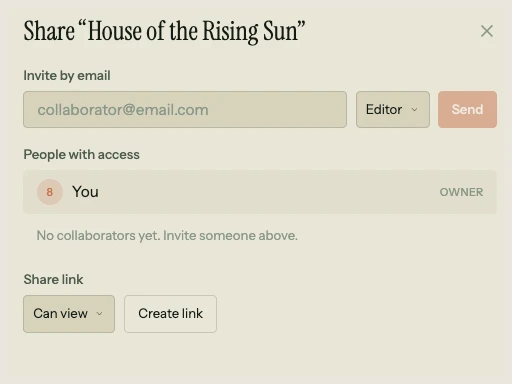
Your songs are private by default. Nothing is shared until you choose to share it. When you do, the Share dialog in the song menu is where it all happens.
16.1 The Share dialog
Open the song menu (click the song title in the toolbar) and choose Share.... The Share dialog shows:
- People with access: the song owner and any collaborators, with their roles.
- Share link: a section for generating and copying invite links.
- Email invite (Band tier): a field for sending invitations directly to an email address.
The dialog adapts to your subscription tier. Free accounts can't share at all. Pro accounts see view-only link sharing. Band accounts see the full set of options.
16.2 Share links
A share link is a URL you can copy and send to anyone. When the recipient clicks it, they sign in (or create an account) and gain access to the song.
Pro tier: view-only links
On the Pro tier, share links grant viewer access only. The recipient can open the song and see everything (chords, lyrics, melody, structure) but cannot edit. This is useful for sharing a draft with someone who needs to review it but not change it.
Band tier: editor or viewer links
On the Band tier, a role dropdown next to the link lets you choose whether the link grants editor or viewer access. Editor links let the recipient make changes to the song. A single song can have up to five editors.
Creating and copying
Click Create Link to generate a new share link. The link appears with a Copy button. Send it via text, email, or any messaging app. Each link works for one person (single use). To share with multiple people, create a new link for each.
16.3 Email invitations
On the Band tier, you can invite collaborators by email directly from the Share dialog. Type an email address, choose a role (editor or viewer), and send. The recipient gets an email with a link to accept the invitation.
If the recipient already has a Song Cage account, they'll see the shared song in their song list after accepting. If they don't have an account yet, the invitation waits. When they sign up with the same email address, the pending invitation connects automatically and the song appears in their list.
16.4 The three roles
Every person with access to a song has one of three roles:
Owner
The person who created the song. Owners have full control: they can edit the song, share it, manage collaborators, change roles, revoke access, export, and delete. Every song has exactly one owner, and ownership cannot be transferred.
Editor
An editor can do everything an owner can do with the song's content: add and edit chords, lyrics, melody, sections, voicings, and structure. Editors cannot share the song with others, manage collaborators, or delete the song. Up to five editors can collaborate on a single song.
Viewer
A viewer can open the song and see its full content but cannot edit anything. A "View only" banner appears at the top of the screen, and all editing controls are disabled. Viewers can still play back the song to hear it.
16.5 Accepting an invite
When you click a share link or email invitation, the accept flow depends on whether you're signed in:
Already signed in: the invitation is accepted immediately. On desktop, the app opens the shared song within a couple of seconds. On mobile, a confirmation screen appears with an option to email yourself a desktop link (since the full editor is desktop-only).
Not signed in: the accept page shows sign-in and sign-up buttons. After you authenticate, the invitation is accepted automatically. The invite token is preserved through the entire auth flow, including OAuth redirects, so you don't need to click the link again.
16.6 How sync works
Song Cage uses PowerSync for offline-first sync. When an editor makes a change (places a chord, edits a lyric, adds a section), the change saves locally and syncs to the cloud in the background. Other collaborators see the update when their device syncs, typically within a few seconds.
There are no live cursors or real-time presence indicators. You won't see another collaborator's mouse moving on the screen. The sync model is closer to a shared document that updates periodically than a Google Docs-style live editing experience. In practice, this works well for songwriting because collaborators are usually working on different parts of the song or at different times.
16.7 Managing collaborators
The People with access section of the Share dialog shows every person who has access to the song, including pending invitations that haven't been accepted yet.
Changing roles
On the Band tier, the owner can change a collaborator's role using the dropdown next to their name. Upgrading a viewer to an editor gives them editing access. Downgrading an editor to a viewer removes their ability to edit (their changes up to that point remain in the song).
Removing access
Click the remove button next to a collaborator's name to revoke their access. They lose access on their next sync. Any edits they made before removal stay in the song.
16.8 Leaving a shared song
If you're a collaborator (not the owner), the song menu shows Leave Song instead of Delete. Clicking it removes you from the song's collaborator list. The song disappears from your song list, and any edits you made remain.
16.9 Shared songs in your song list
Shared songs appear alongside your own songs in the song list sidebar. A small people icon next to the title distinguishes shared songs from ones you own. Shared songs are sorted by last updated, just like your own songs, so a recently edited shared song appears near the top.
16.10 Tier summary
| Feature | Free | Pro | Band |
|---|---|---|---|
| View-only share links | Yes | Yes | |
| Editor share links | Yes | ||
| Email invitations | Yes | ||
| Max editors per song | 5 | ||
| Manage collaborator roles | Yes |
That covers collaboration: sharing, roles, invitations, sync, and access management. The next chapter covers your account settings, subscription management, and the differences between tiers.