The chord palette knows your key, watches your melody, and ranks every suggestion by what fits the moment you're in. You pick. It adapts.
What you'll learn
- How the chord palette organizes chords into In Key, Borrowed, and Secondary Dominants
- How ghost chord slots and suggestion chips guide your next chord choice
- How melody-fit scoring ranks chords by the notes already on the grid
- How to add extensions (7th, sus4, add9) and browse voicings
- How to edit, move, resize, and roll chord boundaries on the timeline
- How voice leading optimization smooths piano voicings across a progression
The last four chapters built up the lyric side of the timeline: sections, the beat grid, writing words, word tools, and syllable splits. This chapter is about the other lane. Every section in Song Cage has a chord lane above its lyric lane, and the chord palette is how you fill it.
Chapter 2 introduced the palette at a glance. Chapter 4 showed how chords can be a starting point. This chapter covers the mechanics: how to place chords, how the palette ranks them, how to shape their sound with extensions and voicings, and how to edit a progression once it's on the grid.
9.1 The three tabs
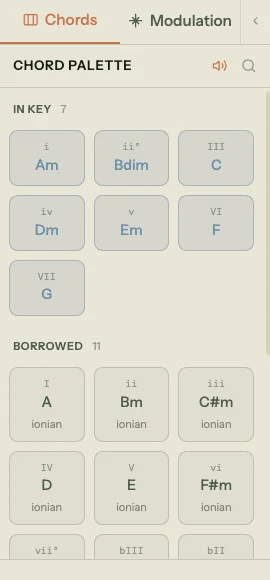
The chord palette lives in the left sidebar, under the Chords tab. It organizes every chord into three sub-tabs based on their relationship to your current key.
In Key
The In Key tab shows the seven diatonic triads for your current key and mode. In A minor, that's Am, Bdim, C, Dm, Em, F, G. In C major, it's C, Dm, Em, F, G, Am, Bdim. Each chord chip displays a Roman numeral label (i, ii°, III, iv, v, VI, VII in minor; I, ii, iii, IV, V, vi, vii° in major) so you can think in scale degrees.
These are the chords that belong to the key without any borrowing or alteration. Most progressions stay mostly here.
Borrowed
The Borrowed tab shows chords drawn from parallel modes. In a major key, borrowing pulls from Aeolian, Mixolydian, Dorian, Lydian, and Phrygian. In a minor key, borrowing pulls from Ionian, Harmonic minor, and Phrygian.
Each borrowed chord is labeled with its source mode so you can see where it comes from. A bVII in C major is borrowed from C Aeolian. A iv in A major is borrowed from A Dorian. These chords add color without leaving the key entirely.
Secondary Dominants
The Secondary Dominants tab shows V chords that resolve to non-tonic targets. V/ii resolves to the ii chord, V/vi resolves to the vi chord, and so on. These create momentary key shifts that pull the listener toward a specific chord before the key reasserts itself.
Secondary dominants are labeled with both their chord name and their resolution target (e.g., "D7" labeled "V/vi" in C major, resolving to Am).
Chord search
Click the search icon (🔍) in the palette header to open the chord search. A text input labeled "Type any chord... (e.g. Bbm7)" lets you enter any chord by name. This is for the moments when you want something specific that isn't in your current key's palette. Type "Eb" and it appears as a chip you can place on the timeline like any other chord.
9.2 Placing a chord
There are three ways to get a chord onto the timeline.
Ghost chord slots
Click an empty beat position in the chord lane and a ghost chord slot appears: a dashed-border box with a pulsing highlight. This is the pending target. The palette immediately recalculates its suggestions for that position, and suggestion chips appear inline near the ghost slot.
Click any suggestion chip to place that chord. Or click a chord chip in the palette. Or drag a chord chip from the palette onto the ghost slot. All three produce the same result: a chord block at that beat.
Drag from the palette
You can also drag a chord chip from the palette directly onto any position in the chord lane, bypassing the ghost slot step. The chord snaps to the beat grid when you drop it.
Sheet view
In Sheet view, small + markers appear between words in each lyric line. Click one to set a pending chord target at that word boundary, then pick a chord from the palette. Song Cage places the chord above the word and, if the lyric block spans multiple words, splits it at the nearest word boundary so the chord aligns cleanly.
Audition mode
When you place a chord (by any method), it enters audition mode. The chord block highlights, the mini fretboard or keyboard in the edit popover shows the default voicing, and you can preview the sound by clicking the speaker icon.
While a chord is in audition mode:
- Left/Right arrow keys cycle through available voicings
- Enter commits the chord
- Escape cancels (removes the chord if it was newly placed, or reverts to the previous chord if you were replacing an existing one)
Audition mode is a try-before-you-commit step. You hear the chord in context, see its voicing, and can cycle alternatives before it becomes permanent.
9.3 Suggestions and melody fit
Double-click an existing chord block to enter replace mode, or click an empty beat to enter place mode. Either way, the palette recalculates and two new sections appear at the top.
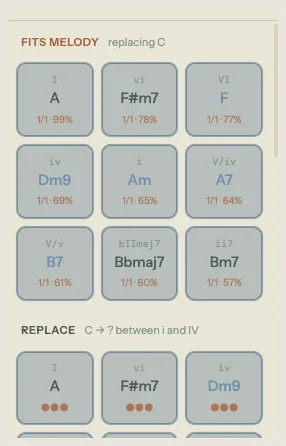
The Fits Melody section (top) ranks chords by how well their tones match the melody notes at this beat. The Place or Replace section (below it) ranks chords by how naturally they connect to the surrounding chords. Together, they answer two questions: what sounds good with the melody here? and what flows well in the progression?
Melody-fit scoring
Each melody-fit chip shows a score in the format 1/1 · 99%: one out of one melody notes in that beat range are chord tones, for a 99% fit score. The percentage is a weighted blend: root matches count more than fifth matches, thirds more than sevenths.
Hover a melody-fit chip for a detailed breakdown: which melody notes matched which chord tones, the progression context (if adjacency data is available), and a composite score explanation.
Melody-fit scoring updates live. Change a melody note at a beat and the chord rankings for that position reshuffle in real time. This is the mechanism behind the "everything talks to everything" behavior described in Chapter 4: the melody you wrote is actively shaping which chords the palette suggests.
Progression suggestions
The Place/Replace section ranks chords by weighted adjacency tables that model common progressions. Each scale degree has a list of weighted destinations. In a minor key, i tends toward iv (0.22), VII (0.18), and III (0.15). In a major key, I tends toward IV (0.22), V (0.20), and vi (0.18).
The ranking is context-aware: it considers both the chord before the target and the chord after it. The context label tells you exactly what's being evaluated: "C → ? between i and IV" means the palette is finding the best chord to sit between Am and D. Multi-chord patterns get additional boosts. A I-V sequence followed by a slot gets a strong boost for vi (the "Pop progression": I-V-vi-IV). A I-vi sequence boosts IV (the "50s progression": I-vi-IV-V).
Voice leading dots
Each suggestion chip shows a smoothness indicator: three filled dots (●●●) for very smooth voice leading (3 or fewer semitones of total hand movement), two filled and one empty (●●○) for moderate movement, and one filled and two empty (●○○) for larger jumps.
Suggestion tooltips
Hover any suggestion chip to see a tooltip explaining the ranking. The tooltip shows directional arrows: "← from Am" explains why this chord follows the preceding chord, and "→ to F" explains why it leads well into the following chord. When a multi-chord pattern triggered a boost, the tooltip names it ("Pop progression", "50s progression", "Andalusian cadence", and others).
9.4 Extensions
Every chord starts as a triad. To add color, open the extension popover by clicking the three-dot button (⋯) on any chord chip in the palette or on any chord block on the timeline.
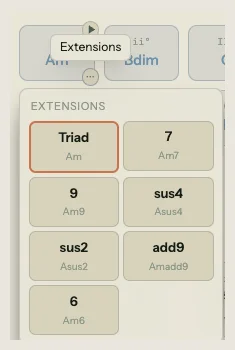
The popover shows a grid of extension buttons. The available extensions depend on the chord quality:
- Major chords get: 7, maj7, 9, sus4, sus2, add9, 6
- Minor chords get: 7, 9, sus4, sus2, add9, 6
- Diminished chords get: 7 only
Each button shows the resulting chord name below it (e.g., clicking "7" on an Am chip shows "Am7"), so you can see the full name before committing.
Click an extension to apply it. The chord updates everywhere: on the timeline, in the palette, and in the voicing display. The extension popover stays open so you can compare extensions quickly.
9.5 Voicings
A chord name like "Am7" doesn't specify which octave, which inversion, or which fingering to use. The voicing controls let you make those choices.
Guitar voicings
When the instrument toggle in the toolbar is set to Guitar, chord blocks show a mini fretboard diagram: six horizontal lines representing the strings (E-A-D-G-B-E), with dots marking fretted positions, open-string markers, and X symbols for muted strings.
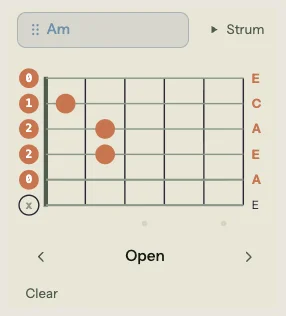
Song Cage ships with a database of real guitar chord shapes. When you place a chord, it picks a default voicing. To browse alternatives, open the chord edit popover (click the chord block, or right-click and choose Edit) and scroll through the voicing options.
If you've set a capo (via the toolbar), all guitar voicings transpose automatically. The fretboard diagram shows the shape relative to the capo position, and the sounding pitch stays correct.
Piano voicings
When the instrument toggle is set to Piano, chord blocks show a mini keyboard with highlighted chord tones.
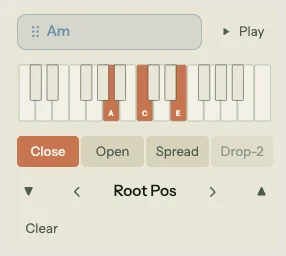
Piano voicings have two axes of variation:
Voicing type controls the spread of the notes:
- Close: all notes within one octave, ascending
- Open: second-from-bottom note moved up an octave
- Spread: root in octave 3, remaining notes in octave 4 and above
- Drop-2: second-from-top note dropped down an octave (available for four-note chords and larger)
Inversion controls which note is in the bass:
- Root position
- 1st inversion (third in bass)
- 2nd inversion (fifth in bass)
- 3rd inversion (seventh in bass, for seventh chords)
An octave offset control (▼ and ▲ buttons) shifts the entire voicing up or down by one or two octaves.
Voicing carousel
The voicing carousel in the edit popover lets you step through voicings with previous/next arrows. A Browse all voicings button opens a popup that displays every available voicing in a grid, grouped by type, each rendered as a mini keyboard. Click any voicing to select it.
9.6 Editing chords on the grid
Once chords are on the timeline, you can reshape the progression directly.
Moving
Drag a chord block horizontally to reposition it within its section. The block snaps to the beat grid. To move a chord to a different section, drag it across the section boundary.
To move multiple chords at once, select them first (click one, then Shift-click or Cmd-click others, or Cmd+A to select all chords in the active section), then drag. All selected blocks move together by the same beat delta.
Resizing
Drag the right edge of a chord block to change its duration. Drag the left edge to change where it starts (the duration adjusts to compensate). Both edges snap to the beat grid.
Rolling boundaries
When two chord blocks sit directly next to each other, you can drag the boundary between them. This is a roll edit: one chord gets shorter, the other gets longer, and the transition point moves. No gap is created.
Copy, cut, paste
Standard shortcuts work on selected chord blocks:
- Cmd+C copies
- Cmd+X cuts
- Cmd+V pastes at the current pending target or playhead position
Pasted chords bring their voicings with them.
Deleting
Press Delete or Backspace to remove selected chord blocks.
Right-click menu
Right-click any chord block for a context menu with Copy, Cut, Paste, Delete, Smooth Voicings (see below), and a Chord Diagrams toggle that shows or hides the mini fretboard/keyboard display on all chord blocks.
9.7 Voice leading
When you build a progression one chord at a time, each chord gets an independent voicing. That's fine for exploring, but if you play the progression back on piano, the jumps between voicings can sound choppy: the right hand leaps around the keyboard instead of moving smoothly from one chord to the next.
The Smooth Voicings command fixes this. Select two or more chord blocks, right-click, and choose Smooth Voicings. Song Cage runs a Viterbi optimization that finds the voicing sequence with the least total hand movement across all selected chords. The first chord's voicing stays fixed as an anchor; subsequent chords switch to whichever inversion and voicing type minimizes the distance from the previous chord.
After optimization, a brief feedback message shows the improvement: something like "42 → 18 semitones," meaning the total voice-leading distance across the selection dropped from 42 semitones to 18.
Smooth Voicings only affects piano voicings. Guitar voicings are physical shapes on a fretboard and don't have the same invertibility, so the command is disabled when the instrument toggle is set to Guitar.
9.8 Chord shortcuts reference
| Action | Shortcut |
|---|---|
| Delete selected chords | Delete / Backspace |
| Copy | Cmd+C |
| Cut | Cmd+X |
| Paste | Cmd+V |
| Select all chords in section | Cmd+A |
| Cycle voicing (audition mode) | Left / Right arrow |
| Commit audition chord | Enter |
| Cancel audition | Escape |
That covers the chord palette and the mechanics of building a progression. The next chapter covers the other half of the harmony layer: writing melody, and how melody notes and chord suggestions feed into each other.